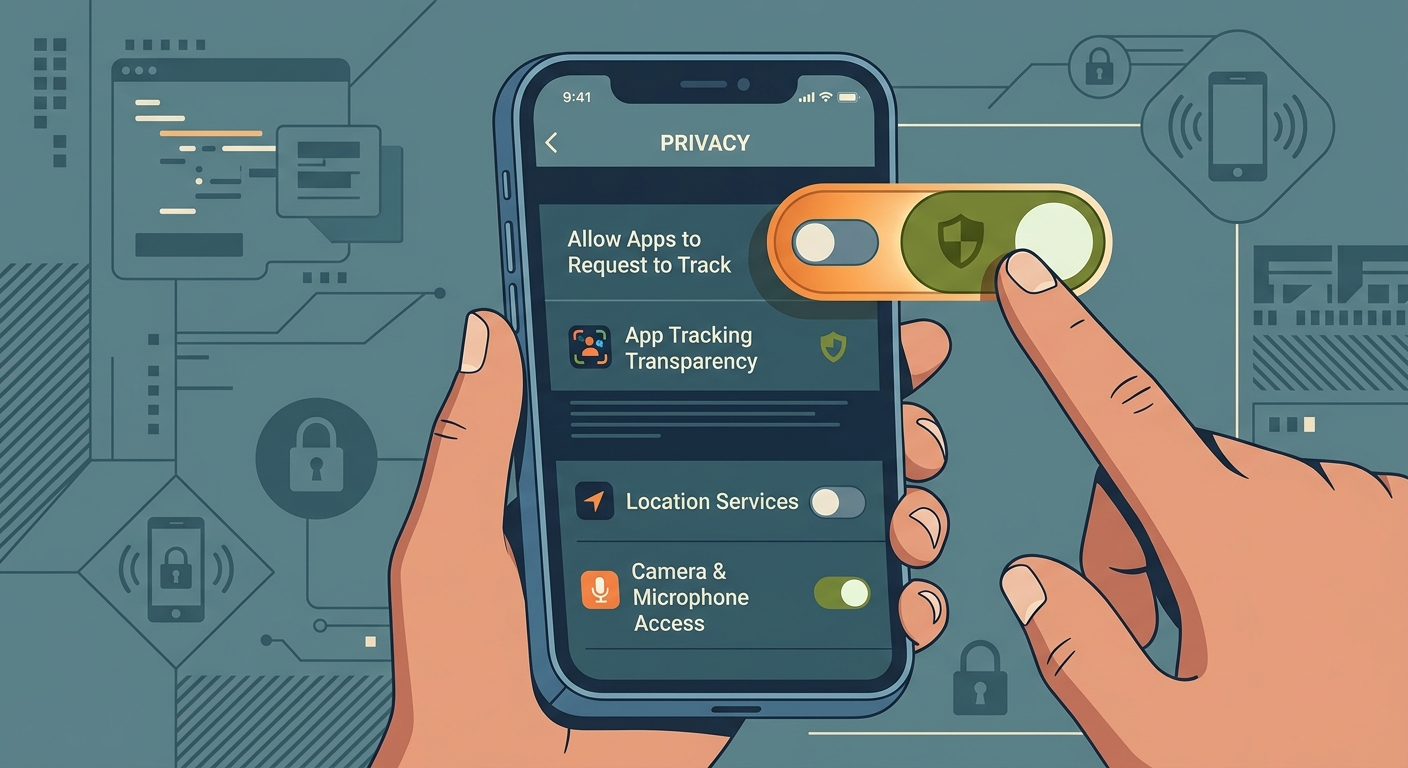
The Problem with Default Settings
Apple designs iPhones for out-of-the-box convenience, not maximum privacy. Default settings keep you seamlessly connected but constantly broadcast your location and network history.
Once you leave your home Wi-Fi, these defaults become a liability. Public networks and apps log your habits, making it easy to track your daily movements.
Editor's Note on Convenience vs. Privacy
You don't have to be paranoid to want privacy. The goal isn't to make your phone unusable—it's to stop giving away data for free when you get nothing in return.
Setting 1: Location Services Permissions
Your weather app doesn't need to know where you are 24/7. Many apps request 'Always' access to your location, silently tracking you even when the app is closed.
How to fix it:
- Go to Settings > Privacy & Security > Location Services.
- Scroll through your app list.
- Change 'Always' to 'While Using the App' for almost everything.
- Turn off 'Precise Location' for apps that don't need your exact street address.
What to leave alone:
Navigation apps like Maps and Uber need 'Precise Location' to work properly. Leave those on 'While Using'.
Setting 2: Ask to Join Networks & Auto-Join
If your phone is set to automatically join known networks, it will connect to any network with a familiar name. Attackers easily spoof these names to intercept your data.
How to lock down Wi-Fi:
- Go to Settings > Wi-Fi.
- Tap the 'i' icon next to public networks you've used before.
- Toggle off 'Auto-Join'.
- Set 'Ask to Join Networks' to 'Ask' or 'Notify'.
The extra layer:
Even with these settings fixed, any public network you manually join is a risk. Always use a VPN before opening sensitive apps on public Wi-Fi. Free VPN US is completely free and secures your iOS and Mac devices instantly.
When to use which privacy layer
| Environment | Biggest Risk | Required Action |
|---|---|---|
| Home / Private Wi-Fi | App background tracking | Limit Location Services to 'While Using' |
| Transit / Walking | Wi-Fi probe requests | Turn off Wi-Fi when not needed |
| Cafe / Airport | Network snooping | Turn off Auto-Join + Connect VPN |
| Reading Emails | Invisible tracking pixels | Enable Mail Privacy Protection |
Setting 3: Mail Privacy Protection
Marketers embed invisible pixels in emails. When you open the email, the pixel loads, telling the sender your IP address, your location, and what time you read it.
What is Mail Privacy Protection?
It's an Apple feature that routes your email content through multiple proxy servers, hiding your real IP address.
How do I turn it on?
Go to Settings > Mail > Privacy Protection, and toggle on 'Protect Mail Activity'.
Does it break my emails?
No. Your emails will look and function exactly the same, but senders will be blind to your activity.
Does this protect all email apps?
No. This only works for the native Apple Mail app. If you use the Gmail app, Google is still tracking you.
Why IP hiding matters
Your IP address is basically a digital street address. Hiding it in Mail stops companies from connecting your email address to your physical location.
Your 2-Minute Pre-Departure Checklist
- Check your location settings. Revoke 'Always' access for social media and shopping apps.
- Disable Auto-Join. Stop your phone from connecting to fake or insecure public hotspots.
- Protect your mail. Turn on Mail Privacy Protection to stop pixel trackers.
- Turn on your VPN. Once you leave the house, encrypt your traffic so local networks can't see what you're doing.
These four steps take less than two minutes, but they dramatically reduce the amount of personal data your iPhone leaks every day. Make it a habit.
Common Questions About iPhone Privacy
Will turning off precise location break Google Maps?
No. As long as navigation apps are set to 'While Using', they can still use your precise location while the app is actively on your screen.
Does Private Wi-Fi Address actually protect me?
Yes. Apple's 'Private Wi-Fi Address' feature creates a fake MAC address for every network you join.
If I use a VPN, do I still need these settings?
Yes. A VPN encrypts your traffic and hides your IP address from the network, but it doesn't stop apps from accessing your GPS location.
Should I just turn off Bluetooth and Wi-Fi completely?
You can, but turning them off from the Control Center doesn't completely turn them off. Use the Settings app.
Deeper Dives
Want to lock things down further? Here are a few advanced settings to consider.
More Privacy Guides
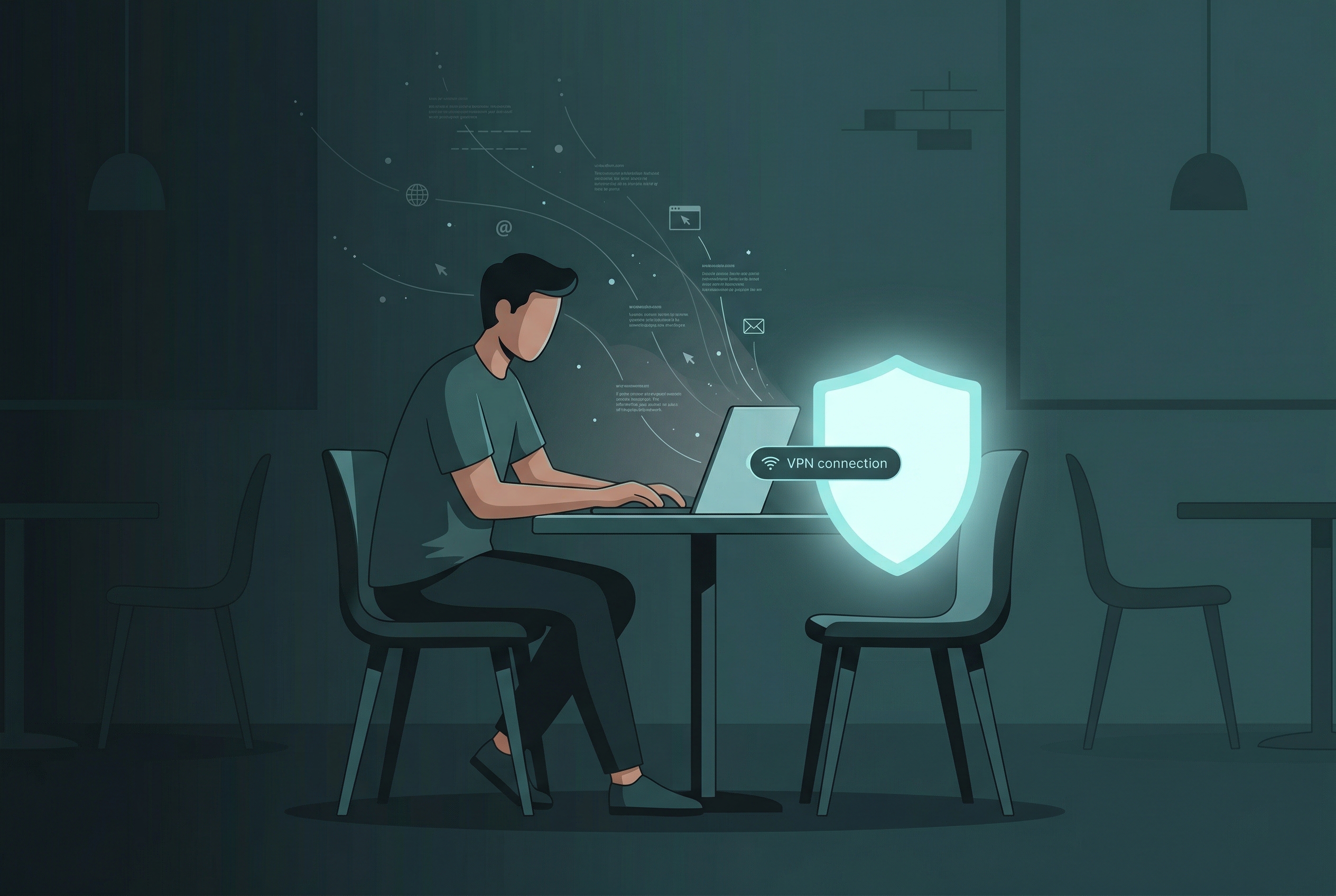

Encrypt your iPhone traffic before you leave home
Don't trust public networks. Get Free VPN US and encrypt your connection with a single tap. It's completely free and requires no registration.
- Military-grade encryption for public Wi-Fi
- Hide your IP address from trackers
- One-tap connection