
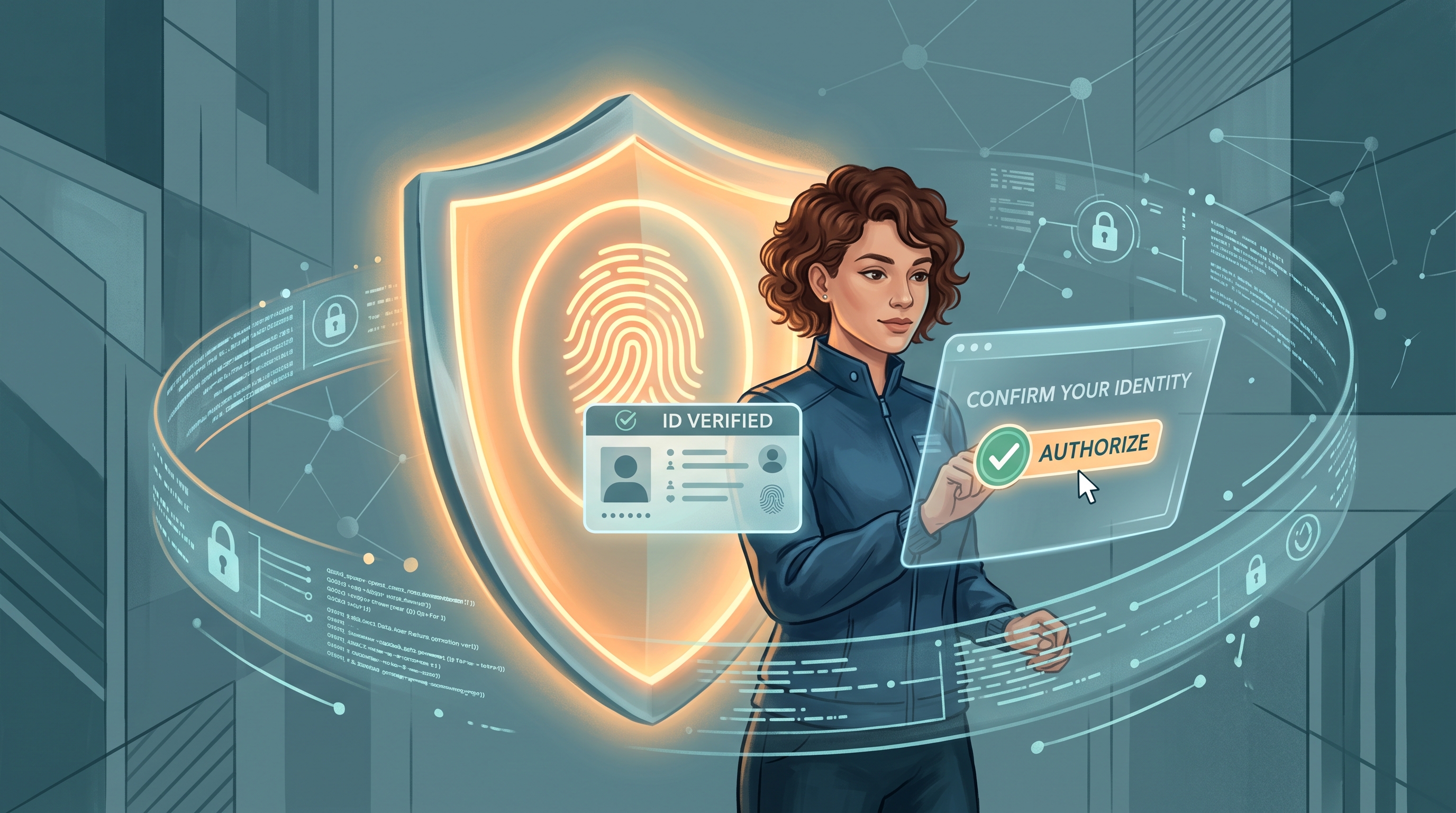
Why Fake Apple ID Verification Popups Fool People
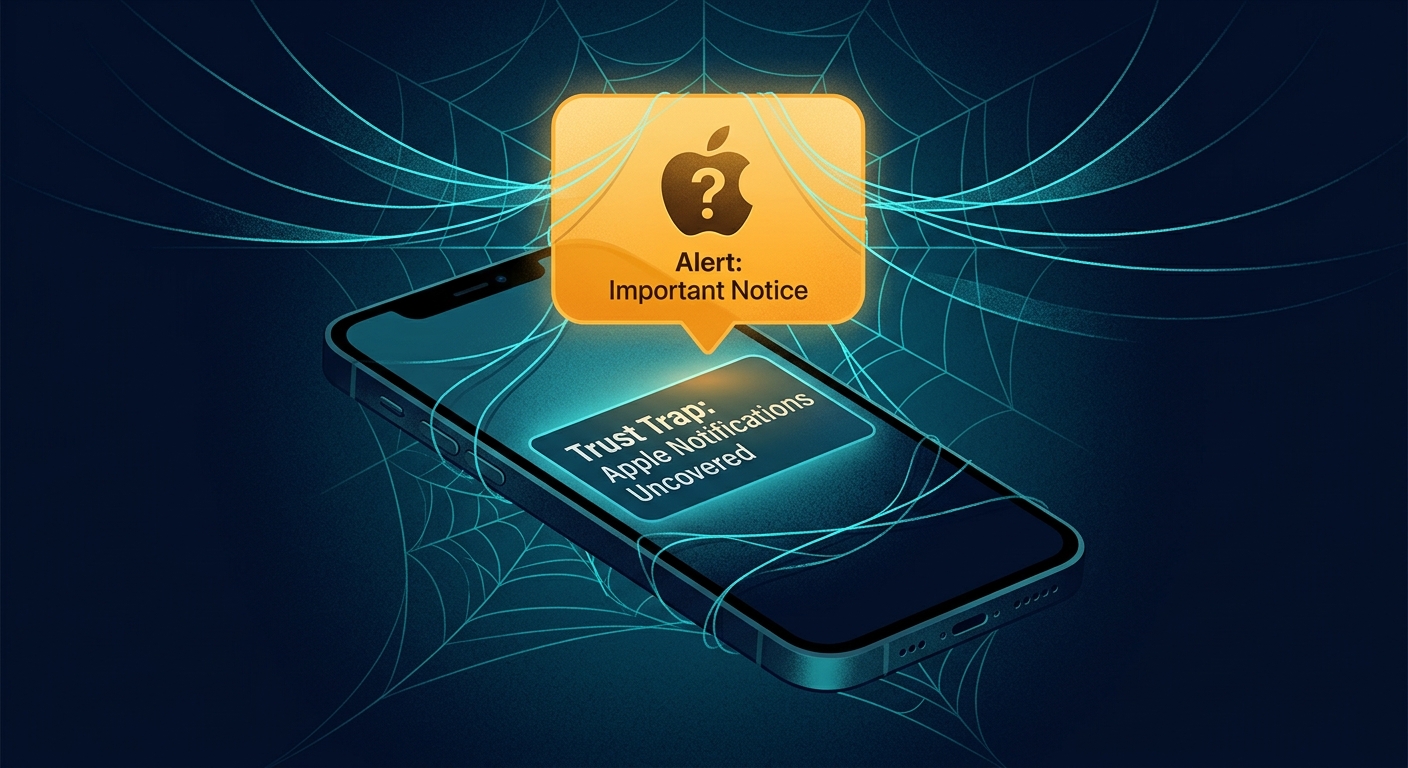
Fake Apple ID verification popups work because they borrow trust from Apple’s design language. The page may use an Apple logo, clean typography, official-sounding language, and urgent warnings about locked accounts, iCloud storage, purchases, or device security. On a small iPhone screen, a fake web modal can feel like a real system prompt.
The scam usually has one goal: push you into entering your Apple ID email, password, two-factor code, phone number, or payment details on a phishing page. Some pages also ask for recovery keys or security questions. Once attackers have those details, they may try to reset your Apple ID, access iCloud, view photos, find devices, approve purchases, or use the same password on other accounts.
For searches like “fake Apple ID verification popup,” “Apple ID popup scam,” or “entered Apple ID on fake website,” timing matters. If you typed credentials or a two-factor code, act immediately from a trusted device and an official Apple route.
A real Apple security issue can be checked without the popup
Close the suspicious page and open Settings or appleid.apple.com yourself. If the alert was legitimate, the issue should still appear through Apple’s official account tools.
How to Spot a Fake Apple ID Popup
First, inspect where the prompt appears. A real Apple account flow usually happens inside iOS Settings, macOS System Settings, the App Store, or an official Apple domain. If the prompt appears inside a random website, pop-up ad, calendar spam page, fake virus warning, or shortened link, treat it as phishing.
Second, check the URL carefully. Attackers use domains with words like apple, icloud, verify, support, secure, billing, or login, but the real domain must still be an official Apple domain. Do not rely on the logo or page design.
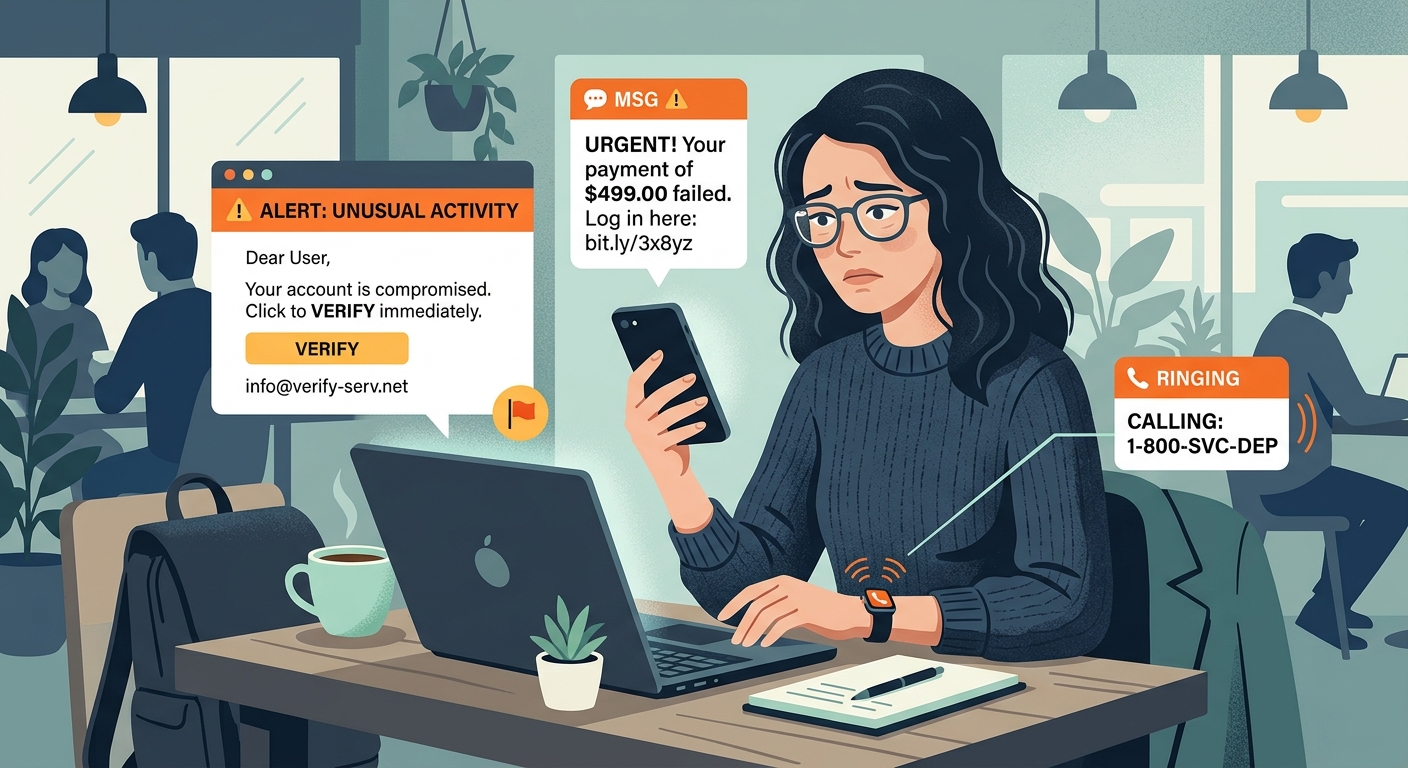
Third, look for pressure tactics. Fake Apple ID verification popups often claim your account will be disabled, your photos will be deleted, your payment failed, or your device is infected. Urgency is a conversion tactic; it is not proof of legitimacy.
Practical checks to run
- Close the popup before typing anything.
- Open Apple Settings or appleid.apple.com manually.
- Check the domain, not just the page design.
- Never enter two-factor codes into a page you reached from a popup.
- If you entered data, change the password immediately from a trusted device.
What these checks cannot prove
These checks narrow the problem, but they do not reveal every backend rule, account control, device-management setting, or legal restriction. Use them to avoid unsafe assumptions and pick the safest next step.
How Free VPN US Helps During Account Recovery
Free VPN US does not replace phishing awareness, but it can protect the network session while you recover the account. This matters on public Wi-Fi, where malicious hotspots, captive portals, or DNS tampering can send users toward fake login pages.
When Free VPN US is active, your traffic is encrypted between your iPhone or Mac and the VPN server. That helps reduce local network interference while you open Apple’s official account page, change your password, review trusted devices, and sign out unknown sessions.
You still need Apple’s built-in protections: two-factor authentication, trusted phone numbers you control, updated recovery information, and unique passwords. A VPN protects the connection; account recovery protects the identity.
What Free VPN US is best at
- Encrypting traffic on public, shared, or unfamiliar Wi-Fi.
- Reducing local network visibility into browsing and DNS activity.
- Adding a practical privacy layer for iPhone and Mac users.
- Helping with legitimate access issues where VPN use is allowed.
What still needs your attention
Free VPN US does not replace account security, careful link checking, app-permission hygiene, or local law. For the best result, combine the VPN with official apps, strong passwords, updated devices, and privacy-aware browsing habits.
Apple ID Scam Signals and Immediate Responses
| Signal | What it may mean | Best next step |
|---|---|---|
| Popup inside a website | A web page is pretending to be Apple. | Close it and open Apple settings manually. |
| Lookalike Apple URL | The page may steal credentials. | Do not type your password or 2FA code. |
| Unexpected 2FA request | Attackers may be relaying your login. | Stop, change password, and review trusted devices. |
| Account-change email | Your Apple ID may be targeted. | Verify directly through Apple, not the email link. |
How to Protect Your Apple Account Long Term
Use these habits to make the guide useful beyond a one-time fix. They improve privacy, reduce account risk, and help readers avoid common traps around blocked websites, phishing pages, location tracking, public Wi-Fi, and private browsing myths.
Use a password manager
Password managers are less likely to autofill credentials on fake domains, which makes phishing easier to spot.
Keep trusted devices current
Remove old phones, Macs, browsers, or devices from your Apple ID account if you no longer use them.
Protect recovery channels
Secure the email account and phone number tied to Apple ID. Attackers often target recovery routes first.
Avoid support-number scams
Do not call phone numbers shown in random popups. Use Apple’s official support pages if you need help.
The login route matters more than the popup design
A fake page can copy Apple’s look. It cannot force you to verify through Apple Settings unless you choose the official route yourself.
Step-by-Step Apple ID Recovery Plan
- Close the suspicious page. Do not click secondary buttons or download anything from it.
- Open Apple directly. Use Settings, System Settings, or type appleid.apple.com manually.
- Change the password if you typed it. Use a trusted device and choose a unique password.
- Review trusted devices and sessions. Remove anything unfamiliar and update recovery details.
- Use Free VPN US on public Wi-Fi. Protect the connection while recovering accounts away from home.
This plan keeps the article focused on safe, legitimate privacy improvements. It also gives search visitors a clear path from diagnosis to action without sending them toward risky shortcuts.
Frequently Asked Questions
Are Apple ID verification popups ever real?
Real Apple prompts can appear in Apple apps or system settings, but a surprise browser popup should be treated as suspicious until verified directly through Apple.
What if I entered my Apple ID password on a fake page?
Change the password immediately from a trusted device, review trusted devices, and secure the email account linked to your Apple ID.
What if I entered a two-factor authentication code?
Act quickly. Attackers may have completed a login. Change your password, remove unknown trusted devices, and contact Apple Support if needed.
Can Free VPN US block fake Apple popups?
A VPN protects the network connection but does not identify every phishing page. You still need to check URLs and use official Apple account routes.
Still Have Questions?
These quick answers cover common follow-up situations after using the guide.
Related Reading
Protect Your Connection With Free VPN US
Free VPN US helps encrypt browsing on iPhone and Mac so shared networks, hotspots, and local Wi-Fi operators see less of your activity.
- Encrypted public Wi-Fi
- iPhone and Mac support
- No-cost VPN option