
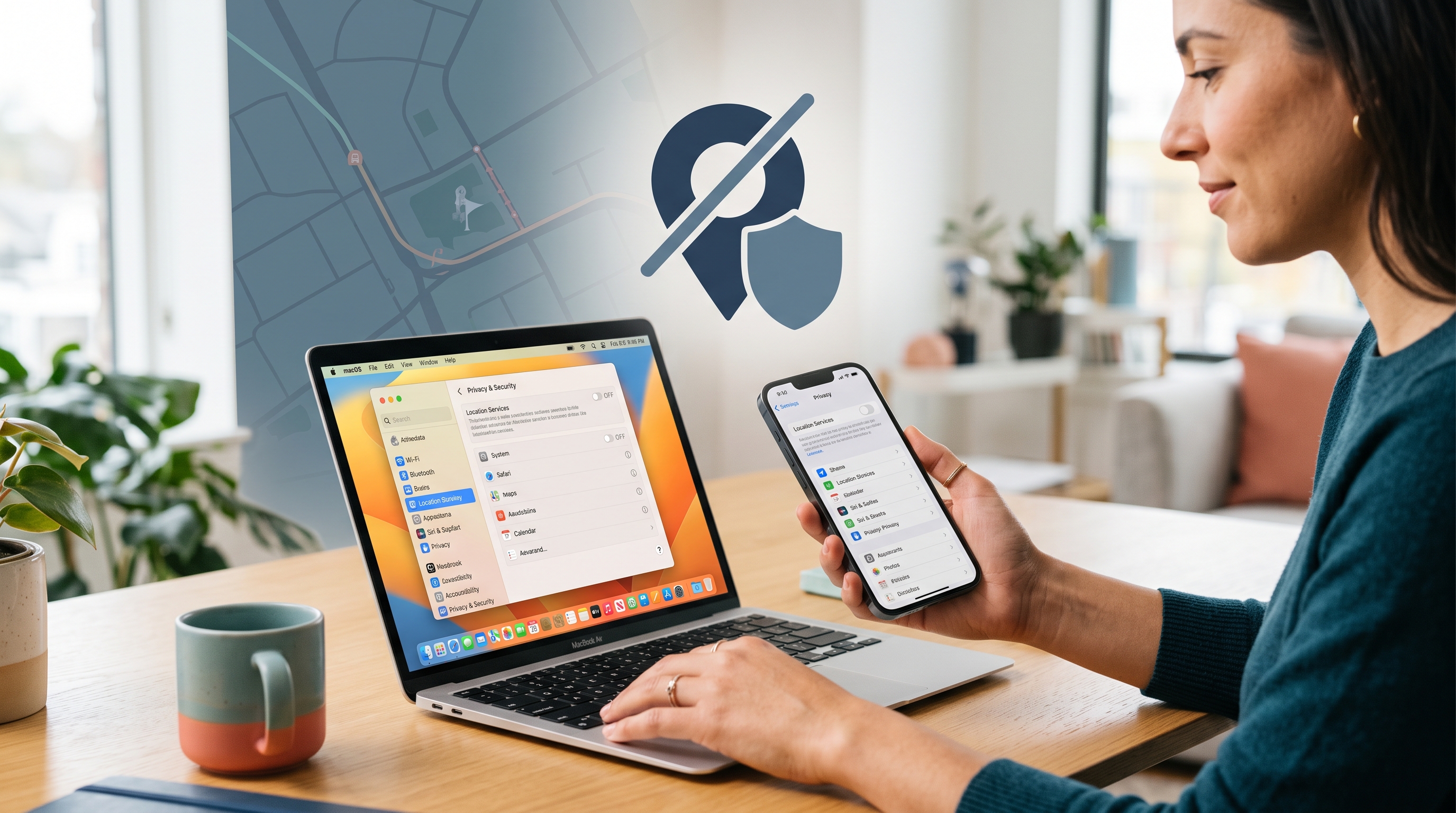
What Location Tracking Reveals
Location data can reveal your home, workplace, travel patterns, visits to medical providers, and daily routines. Apps may request it for navigation or local information, but advertising and analytics systems can also use it to build detailed profiles.
Apple devices estimate location through GPS, nearby Wi-Fi networks, Bluetooth, and cellular signals. Websites can separately estimate your area from your public IP address, even when device Location Services are off.
Do not disable safety features blindly
Turning Location Services off completely can affect Maps, Find My, weather, camera geotags, location sharing, and some emergency features. Review the consequence on your device before choosing the system-wide switch.
Control Location Access on iPhone
Go to Settings → Privacy & Security → Location Services. You can turn the service off for the whole device or select each app and choose the narrowest permission that still supports the feature you use.
Recommended iPhone review
- Set apps that do not need your location to Never.
- Prefer While Using the App or While Using the App or Widgets over Always.
- Turn off Precise Location for apps that only need your general area.
- Review System Services and Significant Locations based on the features you want to keep.
Keep Find My and emergency tradeoffs in view
System-wide disabling can prevent device recovery and location-based assistance. If those features matter, keep Location Services on and restrict individual apps instead.
Control Location Access on Mac
Open System Settings → Privacy & Security → Location Services. Disable access for apps that do not need it, and review Safari website permissions separately because websites can request location through the browser.
Recommended Mac review
- Turn off access for unused weather, shopping, social, and utility apps.
- In Safari settings, review websites that are allowed to request or use location.
- Check whether Find My Mac and time-zone features still work as expected.
- Repeat the review after installing new apps or major macOS updates.
Location Services and IP location are different
Disabling macOS Location Services blocks app access to device-derived location. It does not stop websites or your ISP from seeing your public IP address and estimating your region.
Choose the Right Level of Access
| Setting | Best use | Privacy tradeoff |
|---|---|---|
| Never / Off | Apps with no clear location feature. | Strongest limit; location features will not work. |
| While Using | Maps, weather, camera, or travel apps used interactively. | Access is limited to active use, with some platform exceptions. |
| Always | Only services that genuinely require background location. | Creates the broadest tracking opportunity and battery use. |
| Precise Off | Apps that only need a city or neighborhood. | Reduces accuracy but still reveals an approximate area. |
What to Keep Enabled
Location privacy is a permissions decision, not a single universal switch. Match access to the feature and your risk tolerance.
You rely on Find My
Keep the required Location Services and Find My settings enabled, secure your Apple Account with two-factor authentication, and restrict unrelated apps.
You need turn-by-turn navigation
Use While Using for the maps app and keep Precise Location on only where accurate navigation requires it.
A shopping or social app asks for location
Deny it unless a feature you deliberately use depends on location. You can grant temporary access later if needed.
A website still knows your city
It may be estimating from your public IP address or stored account data. A VPN can mask IP-based location, but it cannot override GPS permission or profile information.
GPS privacy and network privacy solve different problems
App permissions control device-derived coordinates. Free VPN US encrypts network traffic and masks your public IP. Use both layers when both risks matter.
A Five-Minute Privacy Audit
- Open Location Services. Use Privacy & Security settings on iPhone and Mac.
- Remove unnecessary access. Set unused or unrelated apps to Never or off.
- Narrow remaining permissions. Prefer While Using and disable Precise Location where possible.
- Test essential features. Confirm navigation, Find My, weather, and emergency behavior still meet your needs.
Review permissions every few months and after installing new apps. If you also want to reduce IP-based location exposure, use a VPN on networks where that privacy layer is appropriate.
Frequently Asked Questions
Can someone track my iPhone if I disable Location Services?
Apps lose access to normal Location Services, but your carrier can still estimate location from cellular connections and websites can estimate your region from your public IP address.
Does disabling Location Services improve battery life?
It can reduce power used by GPS and background location requests, although the result depends on which apps were actively requesting location.
Will Find My work if Location Services are off?
Some Find My capabilities depend on location and related settings. If device recovery matters to you, keep the required Apple settings enabled and restrict other apps individually.
What does Precise Location do?
Precise Location gives an app a more exact position. Turning it off provides an approximate area when the app and operating system support that option.
A Few More Questions
Use these details to troubleshoot the most common edge cases before changing accounts or device settings.
Related Reads

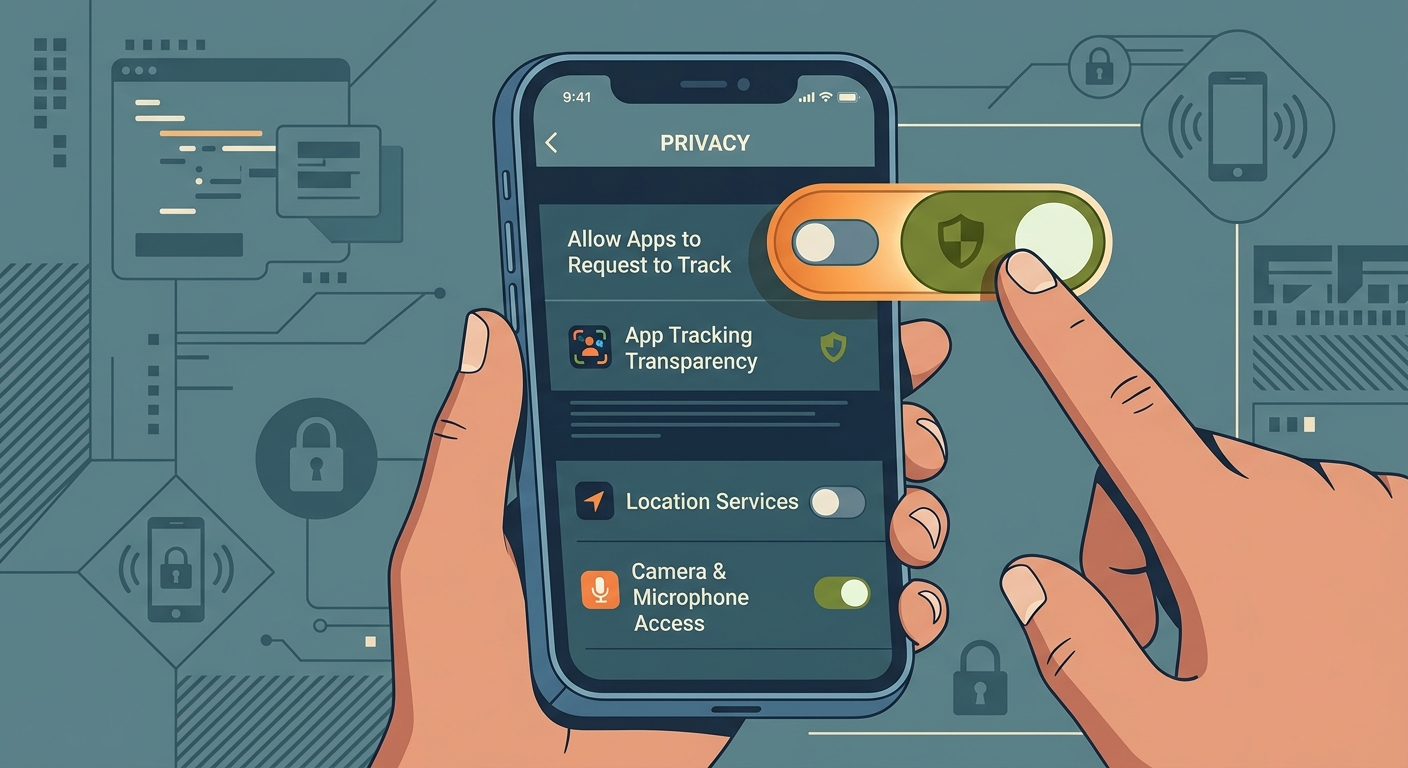
Browse More Privately with Free VPN US
Free VPN US encrypts your connection and masks your public IP address on iPhone and Mac. It is a useful privacy layer on public or restricted networks, while app rules and local laws still apply.
- Fast setup on iPhone and Mac
- Encrypted traffic on untrusted Wi-Fi
- No activity logs