

The Direct Answer
A VPN does hide your IP address from websites. When you use a VPN, websites see the IP address of the VPN server you're connected to—not your actual internet provider's IP. This is the primary privacy feature of a VPN.
What Your IP Address Reveals (Without a VPN)
Your IP address is like a return address on a letter. It tells websites and networks who you are and where you're connecting from.
What websites can see
When you visit a website without a VPN, the site logs your IP address automatically. From that IP, websites can infer:
- Your approximate location — Usually accurate to a city or region. Advertisers and services use this to show location-specific content.
- Your internet service provider (ISP) — Websites can see which company provides your connection, which tells them about your network.
- Your organization or employer — If you're browsing from a corporate network, the IP often reveals your company.
- Browsing patterns — Repeated visits from the same IP link all your activity to one person, even across different sites.
What your ISP can see
Your ISP sits between you and the internet. Without encryption, they see:
- Every website you visit (including the time and duration)
- How much data you download
- Some ISPs can see what you search for and the apps you use
ISPs use this information for throttling (slowing down specific traffic), selling data to advertisers, and complying with government requests.
How a VPN Hides Your IP Address
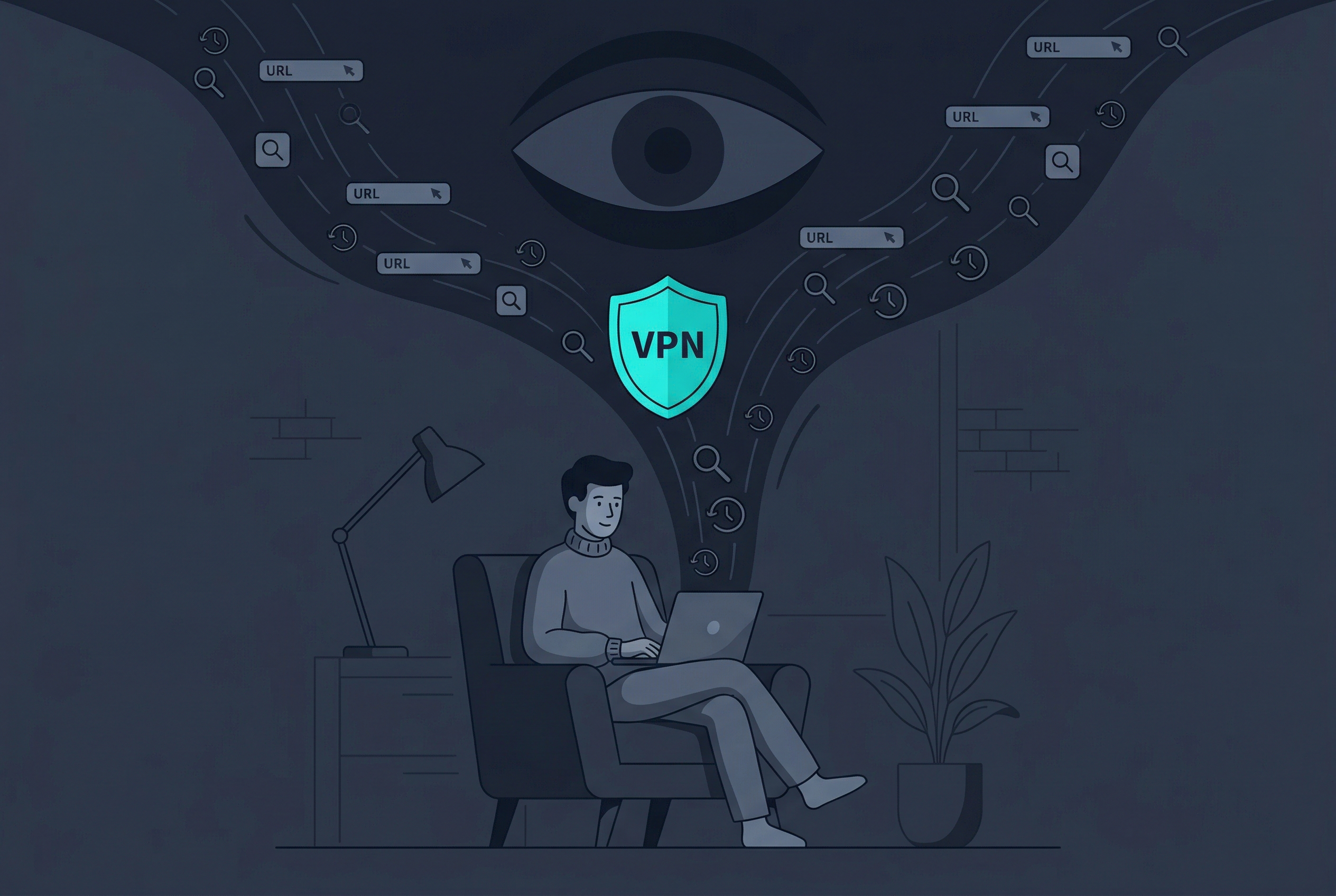
A VPN (Virtual Private Network) acts as an intermediary between you and the websites you visit. Here's what happens:
- Your traffic goes through the VPN first — Instead of connecting directly to a website, your browser connects to a VPN server. The VPN then fetches the website for you.
- The VPN server becomes your public face — When the website responds, it addresses the response to the VPN server's IP, not yours. From the website's perspective, you are the VPN server.
- Your connection is encrypted — The data between you and the VPN is scrambled. Your ISP can see you're using a VPN, but they can't read what you're sending or see which sites you visit.
- You choose the VPN location — Most VPNs let you connect through servers in different countries. This changes the location the website sees.
Free VPN US works the same way on iPhone and Mac. When you enable the VPN, all your traffic routes through our encrypted tunnel, and websites see one of our server IPs instead of yours.
What a VPN Actually Hides
A VPN protects specific privacy layers. Be clear about what it covers:
1. Your real IP address
Websites only see the VPN server's IP. If you connect to Free VPN US and visit a news site, that site logs our server's IP, not yours.
2. Your browsing history from your ISP
Your internet service provider can't see individual websites you visit when using a VPN. They see encrypted traffic to a VPN server, but not where that traffic goes after.
3. Website tracking via IP location
Websites can't use your IP to pinpoint your city or country (they see the VPN server's location instead). This prevents location-based tracking and data collection.
4. Your connection from workplace or school networks
Network administrators at your school or office can see that you're using a VPN, but they can't see which sites you access. Free VPN US is useful for bypassing network restrictions on public or monitored networks.
What a VPN Does NOT Hide
This is critical. A VPN is not invisibility. Many privacy threats exist outside of IP-based tracking.
Your account logins and personal info
If you log into Facebook, Gmail, or your bank while using a VPN, those services know exactly who you are. The VPN hides your IP, but your username and login are still visible. These companies can track you across the web through their account systems.
Browser fingerprinting
Sophisticated trackers create a "fingerprint" of your browser by recording your screen size, installed fonts, browser version, plugins, and other settings. Browser fingerprinting works around VPN IP hiding because it doesn't rely on your IP address.
Cookies and session tracking
Websites set cookies in your browser to track you across visits. A VPN doesn't delete or block cookies. You stay logged into websites even when you connect through a VPN, and cookies can re-identify you across different sites.
Your device's other signals
Your phone or Mac broadcasts information that identifies it: device name, model, operating system, and unique advertising identifiers. Apps on your iPhone or Mac can report your location directly, bypassing the VPN.
Metadata and connection patterns
Even with a VPN, patterns can reveal you. If you always visit the same sites at the same times, visit them longer than average, or access them in a unique sequence, an observer might recognize those patterns even if they don't see the site names.
Comparison: What's Visible With and Without a VPN
| What Websites See | Without VPN | With VPN |
|---|---|---|
| Your IP address | Your real IP | VPN server IP |
| Your location | Your actual location | VPN server location |
| Your ISP | Your real ISP | VPN provider's ISP |
| Your account (if logged in) | Identified by email or username | Still identified by email or username |
| Browser fingerprint | Tracked via device & browser settings | Tracked via device & browser settings (IP not needed) |
| Cookies | All cookies active | All cookies active |
How to Verify Your VPN is Actually Hiding Your IP
Don't just trust claims. Test it yourself on your iPhone or Mac:
Step 1: Note your real IP
- Disconnect from Free VPN US (or any VPN).
- Open Safari or your browser and go to whatismyipaddress.com or ipleak.com.
- Write down your IP address, location, and ISP name.
Step 2: Connect to the VPN and check again
- Open the Free VPN US app on your iPhone or Mac.
- Tap to enable the VPN (or toggle it on).
- Wait for the connection to establish (you'll see the VPN icon in your status bar).
- Go back to the same IP-checking website.
- Your IP address should be different, and your location should match the VPN server's location.
Step 3: Try different VPN locations
In Free VPN US, change your VPN location and refresh the IP-checking page. Your IP should change each time. This confirms the VPN is routing your traffic through different servers.
Common Myths About VPN IP Hiding
Myth 1: "A VPN makes you completely invisible"
False. A VPN changes your IP and hides browsing from your ISP, but it doesn't block tracking entirely. If you log into accounts, use your real name, or visit sites that use fingerprinting, you can still be identified.
Myth 2: "100% anonymous with a VPN"
No service offers true anonymity. A VPN is one privacy tool among many. For stronger anonymity, combine a VPN with iPhone privacy settings, cookie management, and account practices.
Myth 3: "All VPNs hide IP equally"
Not true. Some VPNs have IP leaks (failures that expose your real IP momentarily), poor encryption, or logging practices. Reputable providers like Free VPN US test regularly to prevent leaks.
Myth 4: "Using a VPN is suspicious and illegal"
Using a VPN for privacy is legal in most countries. Check your local laws if you're concerned, but VPN use is protected in the US, UK, Canada, Australia, and most of Europe.
Myth 5: "A VPN stops all tracking"
A VPN stops one tracking method (IP-based). It doesn't stop cookies, browser fingerprinting, or device-level tracking. Private browsing mode + a VPN is stronger than either alone.
Why IP Hiding Matters for iPhone and Mac Users
Apple emphasizes privacy, but your IP address is still exposed by default. Here's why VPN protection is useful:
On public Wi-Fi (cafes, airports, hotels)
Public Wi-Fi is notoriously insecure. Anyone on the same network can intercept your data. A VPN encrypts your traffic so that other people on the coffee shop's Wi-Fi can't see your passwords or messages. Free VPN US is lightweight and works seamlessly on iPhone.
ISP and network visibility
Your ISP and network administrator see your IP and browsing habits. A VPN masks that activity. On your home Wi-Fi, your ISP still monitors what sites you visit, but a VPN hides your traffic from them.
Location privacy while traveling
When you travel abroad, your IP reveals your location. A VPN from a different country can help protect your iPhone's location and personal data while abroad.
App tracking on iOS
Some apps collect your IP address for tracking and profiling. While iOS doesn't show you which apps are accessing your IP, a VPN adds a barrier by changing the IP they see.
Frequently Asked Questions
Will a VPN completely hide my IP address from every website?
A VPN changes the public IP address websites see—they'll see the VPN server's IP instead of your actual one. However, if you log into an account with your personal information, that account can still identify you. Additionally, some advanced tracking methods like browser fingerprinting can work around VPN IP hiding.
What can websites see without a VPN?
Without a VPN, websites can see your real IP address, which reveals your general location and internet service provider. Your browser type, device information, and browsing patterns are also visible. Saved login credentials and cookies can further identify you across sites.
Can my ISP still see what I'm doing if I use a VPN?
Your ISP can see that you're using a VPN and how much data you're transferring, but they cannot see the specific websites you visit or the content you send. The VPN encrypts that information so only the VPN provider can access it.
Is using a VPN legal?
In most countries, using a VPN is legal for personal privacy. However, a few countries restrict or ban VPNs. We recommend checking your local laws before using one, especially when traveling abroad.
How can I test if my VPN is actually hiding my IP address?
You can use free IP-checking websites before and after activating your VPN. Turn off the VPN, visit a site like whatismyipaddress.com and note your IP. Then activate Free VPN US and refresh the page—your IP should be different. Repeat this test with different VPN locations to confirm.
More About VPN Privacy and Security
A VPN typically adds a small amount of latency (delay) because your data takes an extra route through the VPN server. On modern networks, this is usually unnoticeable—you might lose 5–15% speed depending on server distance and your connection quality. Free VPN US is optimized for speed, so the impact is minimal on most connections.
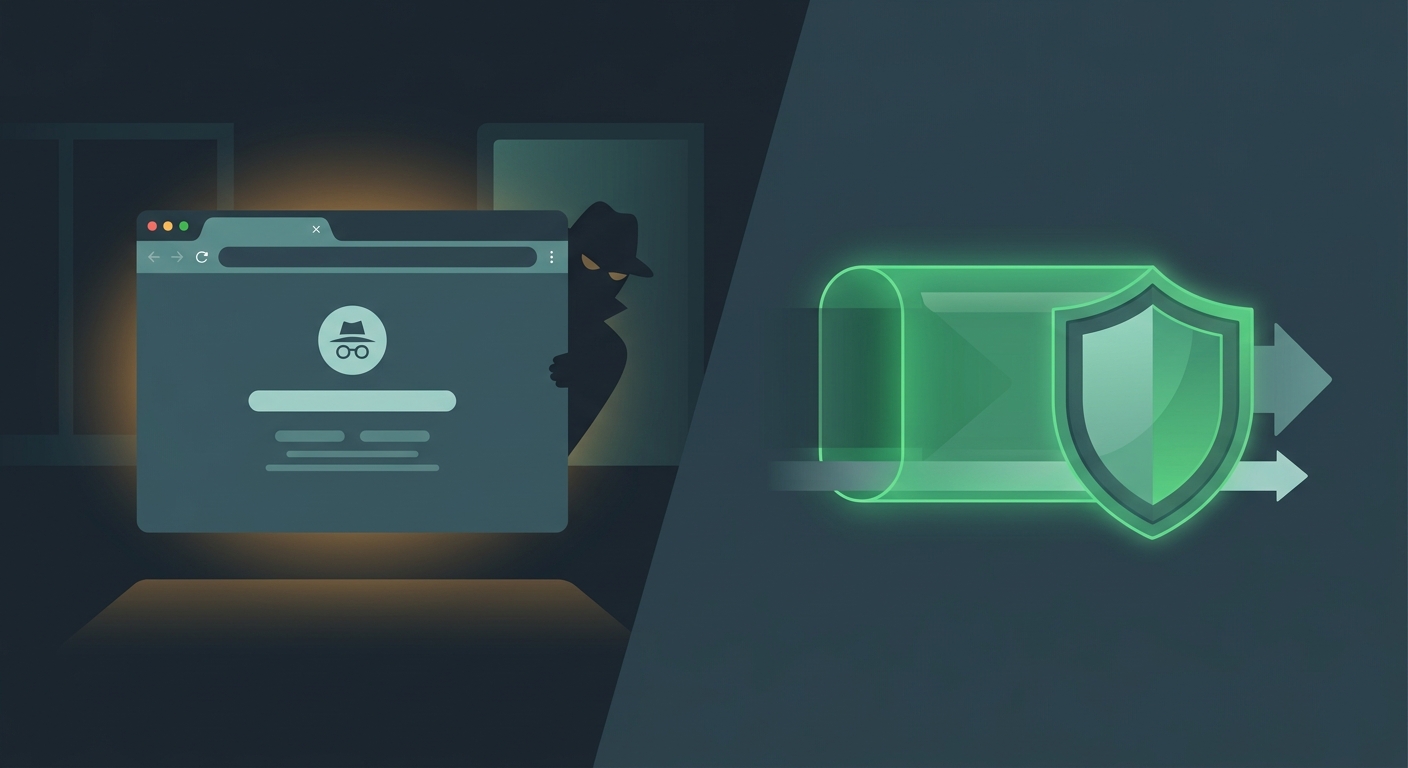
Incognito mode (or private browsing) clears your local browsing history and cookies from your device—it doesn't change your IP or encrypt your traffic. Your ISP and websites still see your real IP. A VPN hides your IP and encrypts traffic to your ISP, but doesn't clear browsing history on your device. Learn the full difference between incognito and VPN.
Some websites can detect VPN use by checking if an IP belongs to a known VPN provider. This is one reason why streaming services block some VPN IPs—they want to enforce geographic restrictions. Free VPN US constantly updates server IPs to reduce detection, but some sites may still notice.
On public Wi-Fi, anyone on the same network can intercept unencrypted traffic. A VPN encrypts all data between your device and the VPN server, making it unreadable to anyone intercepting your connection. So even on an insecure coffee shop network, your passwords and messages stay safe.
Related Privacy & Browsing Guides

Test IP Hiding on Your Device
Download Free VPN US for iPhone or Mac and verify IP address privacy yourself. Choose from multiple server locations and check real-time changes.
Download Free VPN US