
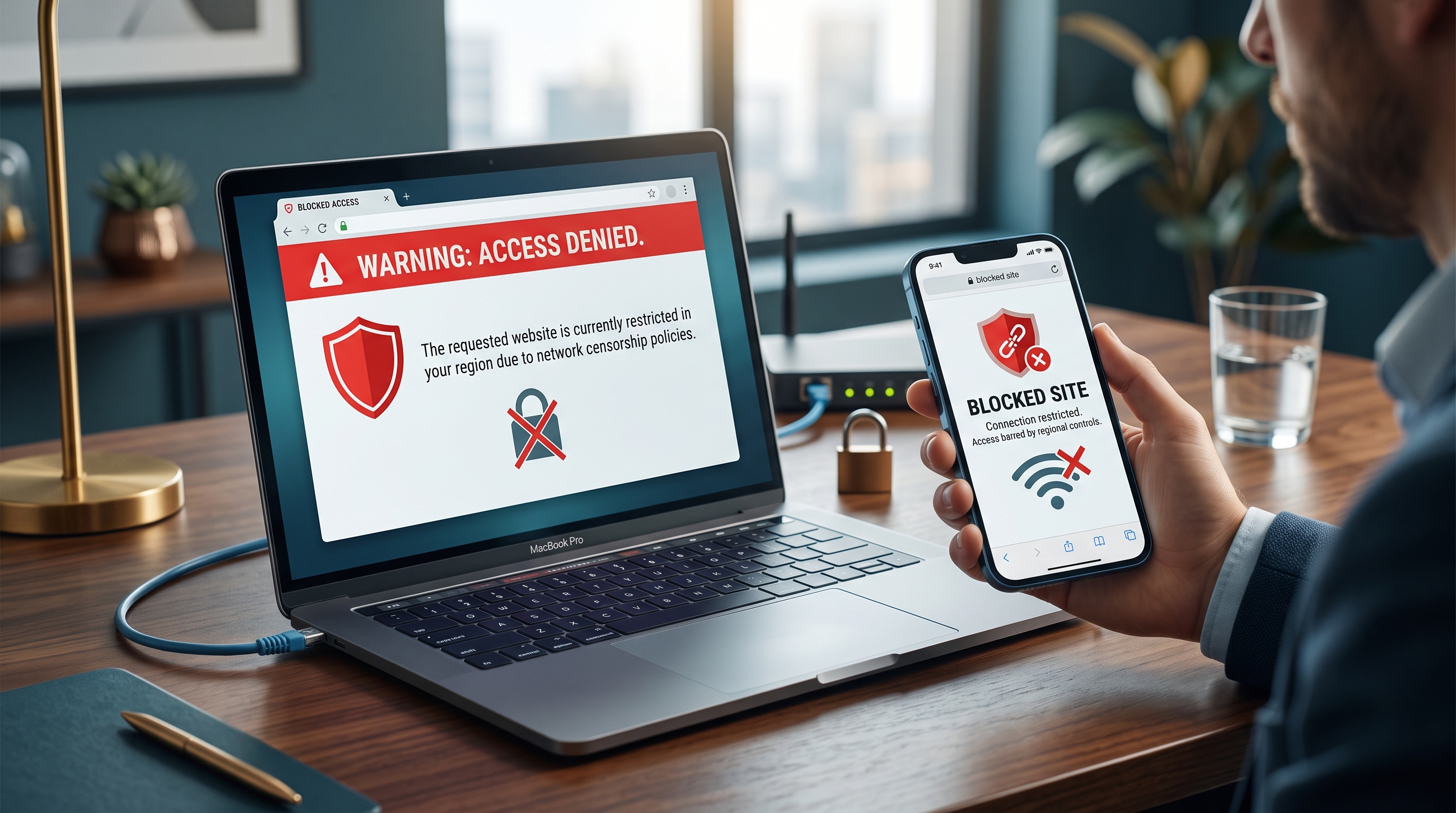
ISPs block websites using DNS filtering, IP address blocking, or deep packet inspection. You can bypass these blocks by using a different DNS resolver, a VPN, or Tor. Each method has different security and speed tradeoffs.
What Is ISP Blocking and Why It Happens
Internet Service Providers (ISPs) can intercept and block websites at the network level before your device even receives a response. This blocking happens between your device and the broader internet, at infrastructure controlled by your ISP. Unlike parental controls on your phone (which you can toggle), ISP-level blocks affect everyone on that network, and they're much harder to disable.
ISPs block websites for several reasons:
- Legal mandates: Courts order ISPs to block websites in response to copyright complaints, gambling regulation, or government censorship laws. This is the most common reason for large-scale blocking.
- Payment processing restrictions: ISPs may block gambling, adult content, or other services that lack proper payment processing licenses in your region.
- Copyright enforcement: Rights holders request ISP blocks for torrent sites and piracy services.
- Network management: Some ISPs throttle or block bandwidth-heavy services to manage congestion (though this is less common and often illegal).
- Government censorship: In countries with strict internet regulation, ISPs are forced to block websites that governments deem illegal or inappropriate.
The Privacy Angle
Even when ISP blocking is technically legal, it means your ISP has visibility into where you're trying to go on the internet. They know every blocked attempt, every redirect, and every timeout. That level of tracking is why privacy-conscious users often use a VPN regardless of whether they're accessing blocked content.
How ISP Blocking Actually Works
ISPs use three primary blocking methods. Understanding which one is being used helps you choose the right bypass strategy.
DNS Filtering (Most Common)
DNS (Domain Name System) is the internet's address book. When you type a website URL, your device queries a DNS server to find the IP address for that domain. ISPs often operate DNS servers that intercept these queries. If a domain is on their blocklist, the DNS server returns a fake IP address or no response at all. Your device never connects to the real site—it gets a dead end instead.
This is the easiest type of blocking to bypass because you can switch to a different DNS resolver that doesn't filter websites. Popular alternatives include Cloudflare DNS (1.1.1.1) and Google DNS (8.8.8.8), both of which are available on iOS and Mac.
IP Address Blocking
If a website is hosted on a specific IP address, ISPs can block access to that address at the network level. Any traffic destined for that IP gets dropped before it reaches your device. This method is harder to bypass with DNS changes alone because the IP is blocked regardless of what domain you use to reach it.
Deep Packet Inspection (DPI)
The most advanced blocking method is deep packet inspection. ISPs inspect the actual content of your internet traffic, looking for specific keywords, SSL certificate hostnames, or data patterns that match blocked services. DPI-based blocking requires stronger solutions because it doesn't rely on domain names or IP addresses—it's looking at the encrypted traffic itself.
Why DPI Matters
DPI-based blocking is common in countries with strict censorship laws. It's also used by some corporate networks to block streaming services during work hours. This is the blocking method that most reliably requires a VPN to overcome, because a VPN encrypts your traffic end-to-end, making it invisible to ISP-level inspection.
Methods to Bypass ISP Website Blocking
Method 1: Change Your DNS
If your ISP is using DNS filtering, changing your DNS resolver is the simplest bypass. On iOS and Mac, you can configure your network settings to use a different DNS server.
On iOS: Settings → WiFi → Your Network → Configure DNS → Change to Cloudflare (1.1.1.1) or Google DNS (8.8.8.8).
On Mac: System Preferences → Network → Your Network → Advanced → DNS → Add a new DNS server like 1.1.1.1 or 8.8.8.8.
This method works well for DNS-based blocks but won't help if your ISP is using IP blocking or deep packet inspection. DNS changes are fast and don't slow down your connection, which is why this is often the first thing to try.
Method 2: Use a VPN
A VPN (Virtual Private Network) encrypts all your internet traffic and routes it through a server controlled by the VPN provider. Your ISP sees that you're using a VPN but cannot see which websites you're accessing. The blocked website receives your connection request from the VPN's IP address, not your ISP's network, bypassing all three types of ISP blocking.
Free VPN US works on iOS and Mac, encrypting your traffic with strong protocols and routing it through servers outside your ISP's network. This can route around some DNS or IP-based blocks, while sophisticated filtering may still detect or block VPN traffic. The tradeoff is that VPN connections are slightly slower than direct connections because your traffic travels an extra route.
A VPN can be a practical option for some ISP blocks, but no tool is guaranteed against every filtering method or network policy. It also adds the benefit of ISP privacy—your ISP cannot see which websites you're visiting, only that you're using a VPN.
Method 3: Use Tor Browser (Advanced)
Tor (The Onion Router) is a network designed specifically for anonymity. It routes your traffic through multiple volunteer-run servers, making your connection origin extremely difficult to trace. Like a VPN, Tor bypasses ISP blocking by routing through external networks your ISP cannot see.
Tor is more complex than a VPN and significantly slower, but it offers stronger privacy and anonymity for high-risk situations. For most users trying to access a blocked website, a VPN is more practical. Tor is better suited for users facing government censorship or extreme network restrictions.
Method 4: Mobile Hotspot or Cellular Data
If you're on WiFi controlled by an ISP with blocking, switching to your mobile carrier's network bypasses the ISP entirely. Your phone's cellular connection uses a different ISP (your mobile carrier), so ISP-level blocks don't apply.
This is a quick test to confirm that ISP blocking is the problem and not a website outage or your device configuration. If a website works on cellular but not on WiFi, your ISP is blocking it.
Common ISP Blocking Scenarios
Scenario 1: Blocked Streaming Service
You're in a country where a streaming platform is geo-restricted or government-blocked. You try to access it on WiFi and get an error or timeout. First, try changing your DNS. If that doesn't work, use Free VPN US to route your traffic through a VPN server outside your country. The streaming service will see your connection coming from the VPN server, not your ISP, and grant you access.
Scenario 2: Workplace or School Network Blocking
You're on a work or school network that blocks recreational websites. These networks typically use both DNS filtering and IP blocking, sometimes combined with DPI. Changing DNS might work for some sites, but a VPN is more reliable. On your personal device (not a work computer), enabling Free VPN US protects your traffic before it reaches the network, making restrictions invisible to the network administrators.
Scenario 3: Government or Regional Censorship
You're in a country with broad internet censorship, where multiple websites are blocked including social media, messaging apps, or news sites. DNS and IP blocking are less useful here because the scale of censorship is large and constantly updated. A VPN becomes essential because it routes all your traffic outside the censored network, giving you access to the open internet outside your region.
Is It Safe to Bypass ISP Blocking?
Bypassing ISP blocking is legal in most countries, but not universally. The legality depends on what you're accessing and where you live:
- Legal in most Western countries: Using DNS changes or a VPN to access blocked websites is generally legal. Your ISP may object, but law enforcement usually doesn't intervene for civil service violations.
- Restricted in some countries: Countries with strict censorship laws (China, Iran, Russia, North Korea, etc.) have prosecuted people for using VPNs or other bypass methods. Before using these tools in heavily censored countries, research the legal status.
- Against terms of service on some networks: A workplace or school network may explicitly prohibit VPNs or bypass methods. Using them on those networks could result in account suspension or termination, but typically not legal consequences.
Always check your local laws and the terms of the network you're connecting to before using bypass methods. For accessing legitimate services that are only geographically blocked, bypass tools are generally safe and legal.
Protection Beyond the Block
Bypassing an ISP block solves the immediate problem, but it doesn't address why the blocking happened in the first place. If you're regularly accessing geographically restricted or government-blocked content, a VPN offers ongoing protection:
- ISP cannot see your traffic: Your ISP logs only that you're using a VPN, not which websites you visit.
- Prevents throttling: Some ISPs throttle certain types of traffic (streaming, torrents, etc.). A VPN makes all your traffic look the same, preventing targeted throttling.
- Protects on public WiFi: If you bypass blocks and then access sensitive data on public WiFi, a VPN encrypts that data before it leaves your device.
- Consistent privacy: Instead of selectively using bypass tools, keeping a VPN enabled full-time means your browsing is consistently private from ISP tracking.
Practical Steps for iOS and Mac Users
Step 1: Test the Block — Switch to cellular data or a different network to confirm the site is accessible outside your ISP. If it works elsewhere, ISP blocking is the problem.
Step 2: Try DNS First — Change your DNS to 1.1.1.1 or 8.8.8.8 and try the site again. This works for most ISP blocks and doesn't slow your connection.
Step 3: Use a VPN if DNS Fails — Download Free VPN US on your iOS or Mac device. Enable the VPN, then try accessing the blocked site. The site should load normally.
Step 4: Test Regularly — Some ISP blocks are temporary. Retry occasionally to see if the block has been lifted. If it's a permanent block, keep your VPN enabled when accessing that service.
Practical takeaway
Use the narrowest safe change first, verify the result, and remember that a VPN is one privacy layer rather than a guarantee against every network or tracking method.
Frequently Asked Questions
Can my ISP tell I'm using a VPN?
Your ISP can see that you're connecting to a VPN server (the VPN's IP address is visible), but they cannot see which websites you're accessing through the VPN. They cannot decrypt your traffic or monitor your activity. They only know you're using a VPN, not what you're doing with it.
Will using a VPN slow my internet speed?
VPNs add a small amount of latency because your traffic travels an extra route to the VPN server and back. In practice, on a reasonably fast connection, the slowdown is minimal—usually 5-15%. If speed is critical, try DNS changes first. If you need a VPN for access or privacy, the tradeoff is usually worth it.
Is it illegal to use a VPN to bypass ISP blocks?
In most countries, no. Using a VPN to bypass ISP blocks is legal as long as you're not accessing content that's illegal under local law. However, countries with strict censorship laws sometimes prosecute VPN use. Research your local laws before using bypass tools in countries with heavy internet restrictions.
What's the difference between DNS changes and a VPN?
DNS changes only affect how domain names are resolved. If your ISP uses DNS filtering, changing DNS works. If they use IP blocking or deep packet inspection, DNS changes won't help. A VPN encrypts all your traffic and routes it through an external server, bypassing all three blocking methods. A VPN is more comprehensive but slightly slower.
Deeper Questions About ISP Blocking
Have more specific questions about ISP blocks, bypass methods, or privacy? Expand any of the questions below to explore the topic further.
Without a VPN, your ISP can see every domain you visit, how much data you transfer, and how long you spend on each site. They can log this data and correlate it with your account. They cannot see the specific pages you view within a site (if you're using HTTPS), but they see the full domain and can make accurate inferences about your browsing habits. This is why privacy-conscious users use a VPN for all traffic, not just blocked sites.
Changing to a public DNS resolver like Cloudflare or Google DNS is generally safe. The only potential issue is that some websites or services may resolve differently or more slowly on public DNS servers compared to your ISP's DNS. In practice, this is rare. If a site behaves oddly after changing DNS, you can always revert to your ISP's DNS and try a VPN instead.
Proxies can bypass some types of blocking, but they're not as secure as VPNs. A basic proxy routes your traffic through an external server, bypassing IP blocking, but it doesn't encrypt your traffic. Your ISP can still see what you're doing through the proxy. A VPN encrypts your traffic end-to-end, which is why it's more reliable for both bypassing blocks and maintaining privacy.
Not necessarily, but there are good reasons to do so. If you're only accessing a specific blocked site, you can enable the VPN just for that purpose. However, keeping a VPN on continuously provides consistent privacy protection, prevents ISP throttling across all services, and ensures you're protected if you accidentally visit a blocked site. Many users keep Free VPN US enabled in the background because the privacy benefit outweighs the minimal performance cost.
Related Reading on Internet Freedom



Access Unrestricted Browsing on iOS & Mac
Free VPN US lets you bypass ISP blocks, protect your privacy from network tracking, and browse freely on your Apple devices. Get started in seconds.
Download Free VPN US