
What Location and Personal Data Are Exposed When Traveling?
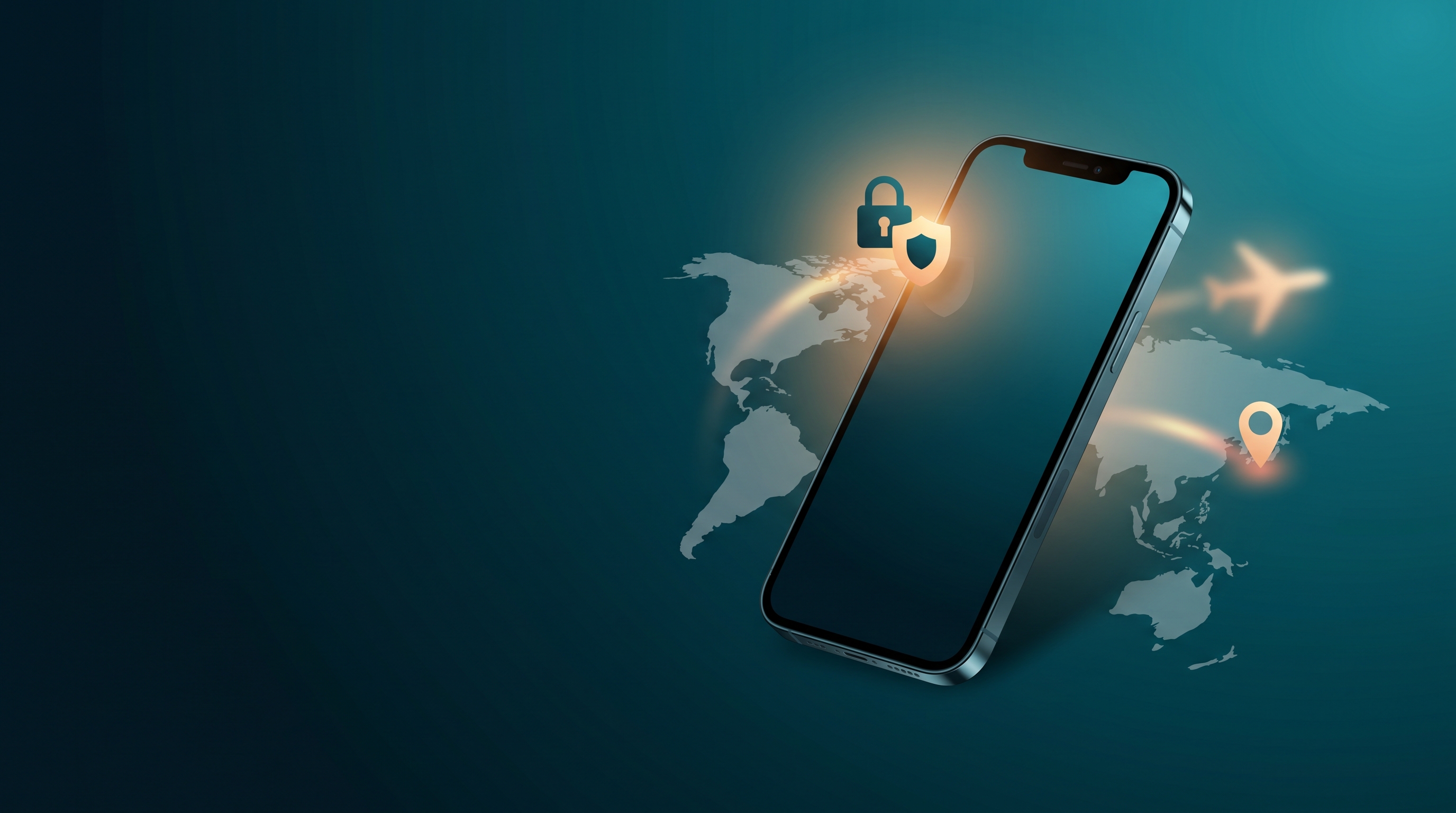
When you travel, your iPhone becomes more exposed than at home. Foreign networks, unfamiliar cellular systems, and public hotspots all create opportunities for tracking and data interception.
Location exposure: Your GPS, cellular connection, and Wi-Fi networks reveal your real-time location to anyone monitoring those signals. Hotels, airports, and cafés routinely log which devices connect to their Wi-Fi. Your cellular carrier in a foreign country logs your cell tower connections. Apps with location permission know where you are at all times, sometimes sharing that data with advertisers or analytics companies.
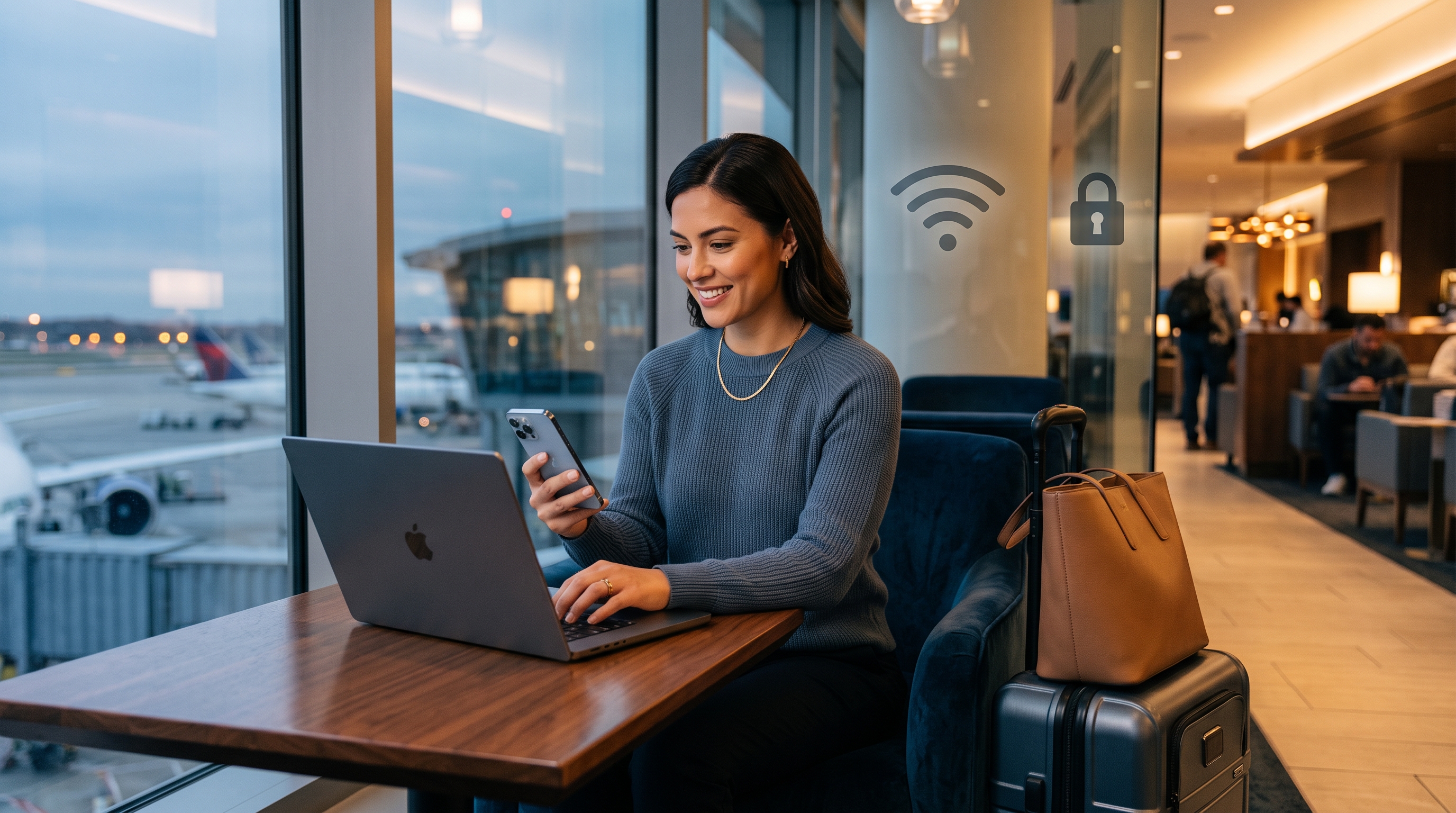
Data interception on public Wi-Fi: Unencrypted public networks let anyone on the same connection capture your traffic. Passwords, emails, banking sessions, and personal messages can all be intercepted if you're not using encryption. Most travelers connect without thinking—that's when harm happens.
Identity and payment tracking: Hotels, rental car companies, and booking sites collect your travel history. Apps you use while traveling can tie your movements to your identity. Payment systems abroad may have weaker fraud protection than your home country.
Real risk, not theoretical:
Researchers regularly find unencrypted hotel Wi-Fi networks where login credentials are visible to other guests. Airport hotspots have been spoofed by attackers. These aren't edge cases—they're routine security gaps in travel infrastructure.
Your iPhone Privacy Settings — What Actually Works
The good news: iOS has strong privacy controls built in. You don't need to jailbreak or use complex workarounds. You need to know which settings matter and turn them on before traveling.
Turn Off Location Services for Specific Apps
Location permission is app-specific, not all-or-nothing. You control which apps can access your GPS.
- Go to Settings > Privacy & Security > Location Services
- Scroll through the list and review each app
- Apps like social media, games, dating apps, and news outlets rarely need location—turn them to "Never" or disable them
- Keep location "Always" or "While Using" only for Maps, weather apps, and services you actively rely on
Disable Wi-Fi and Bluetooth Scanning
iOS uses Wi-Fi and Bluetooth signals to estimate your location even when those features are "off." Disable this tracking:
- Go to Settings > Privacy & Security > Location Services > System Services (scroll to bottom)
- Turn off Wi-Fi Scanning
- Turn off Bluetooth Scanning
- These settings prevent apps and advertisers from pinpointing you using nearby networks
Disable Cross-Site Tracking and App Tracking
Even without location permission, tracking networks follow you across apps and websites.
- Safari tracking: Settings > Privacy > Prevent Cross-Site Tracking (enabled by default—leave it on)
- App tracking: Settings > Privacy & Security > Tracking. Turn off "Allow Apps to Request to Track"
- This prevents apps from requesting permission to track your activity across other apps and websites
Why a VPN Matters for Travelers (Beyond Airport Wi-Fi)
A VPN does three critical things for traveling users: it encrypts your traffic, masks your IP address, and protects you from network snooping. Most travelers think about VPNs only for public Wi-Fi. That's incomplete—a VPN protects you in multiple scenarios.
Public Wi-Fi Protection (The Obvious One)
Unencrypted airport, hotel, and café Wi-Fi leave your data exposed to anyone on the same network. A VPN creates an encrypted tunnel between your iPhone and a secure server, meaning no one on the network can see your passwords, messages, or banking activity. Even hotel networks that ask for login credentials don't encrypt traffic between your device and other internet destinations—a VPN does.
Masking Your Real IP Address
Your IP address reveals your location, ISP, and sometimes your identity to every website you visit and every service you connect to. Traveling abroad on a foreign cellular network shows websites your foreign IP, which can block services (some streaming, banking, or corporate access). A VPN masks that and assigns you a different IP, helping you access region-locked content and hiding your real location from trackers.
Protecting Against Cellular Tracking
You might assume mobile data is secure because it's cellular, not Wi-Fi. Not entirely. Your carrier logs which towers you connect to, creating a movement history. While they can't see your traffic without a VPN, they know where you are. A VPN doesn't hide cellular location from your carrier, but it encrypts what you do online and prevents the websites and apps you use from learning your location.
DNS Leak Protection
DNS queries (when your phone asks "what's the IP for freevpnusapp.com?") can leak your browsing history even through a VPN if DNS isn't encrypted. Free VPN US handles DNS securely, so your ISP and network can't see which sites you're visiting.
Smart Travel Data Practices for iPhone Users
Settings alone aren't enough. Behavior matters equally. Here's what actually works while traveling:
Assume Public Wi-Fi Is Unsafe Until Proven Otherwise
Never assume a hotel or airport network is secure just because it has a login page. Always run a VPN before opening email, banking apps, or any account with sensitive access. If you're buying anything with a credit card or accessing financial accounts, use a VPN—no exceptions.
Disable Auto-Connect Features
iOS tries to auto-connect to Wi-Fi networks you've used before. While traveling, this can connect you to spoofed networks (attackers clone the real hotel Wi-Fi name) without your knowledge.
- Settings > Wi-Fi > Known Networks: Review and delete old networks you won't use on this trip
- Settings > Wi-Fi > Auto-Join Hotspot: Turn off to prevent auto-connecting to open networks
Use iCloud's Private Relay When Traveling
iCloud Private Relay encrypts Safari traffic and masks your IP from websites. It's not a full VPN replacement, but it adds a layer when using Safari. Enable it in Settings > [Your Name] > iCloud > Private Relay.
Avoid Syncing Photos and Documents on Public Wi-Fi
iCloud sync and photo backups use bandwidth and create network traffic. Disable these while on public Wi-Fi to reduce exposure:
- Settings > [Your Name] > iCloud: Turn off auto-sync for Photos, Mail, and Contacts while traveling
- Re-enable after you return to a safe network
Use Two-Factor Authentication on All Important Accounts
If someone does intercept your password on public Wi-Fi, two-factor authentication (2FA) prevents them from logging in without your phone or security key. Enable 2FA on email, banking, and social media accounts before traveling.
Free VPN US for iOS: How It Protects Location Data
Free VPN US is built for travelers and privacy-conscious users who need a no-logs privacy-first approach.
Strong Encryption for Public Networks
Free VPN US encrypts all traffic from your iPhone, protecting data from network snooping on public Wi-Fi. Your hotel, airport, or café network can't see what you're doing.
No-Logs Policy
We don't collect or store browsing history, IP addresses, or connection logs. If law enforcement requests data, we have nothing to give. While traveling in countries with surveillance concerns, this matters—your activity isn't tied to your identity in our system.
Mask Your IP Address
Free VPN US assigns you a US IP address, masking your real location from websites and services. Helpful when you need access to US-based services while abroad, and adds privacy by hiding your travel locations from trackers.
Faster Than Most VPNs for Travel
International VPN connections are slow by nature, but Free VPN US optimizes for speed. Streaming, video calls, and browsing feel smooth even on international servers, so you're not sacrificing usability for privacy.
Common Myths About iPhone Privacy While Traveling
Myth: "Apple Devices Don't Need VPNs Because They're Secure"
iOS is secure against malware, but it's not immune to network snooping or IP-based tracking. A VPN adds encryption your device alone can't provide on untrusted networks. Security and privacy are different things.
Myth: "Airplane Mode Stops All Tracking"
Airplane mode disables cellular and Wi-Fi, but it doesn't erase your location history. Apps still show your last known location, and once you turn airplane mode off, tracking resumes. Location controls and app permissions are what actually limit tracking.
Myth: "Incognito Mode in Safari Prevents Tracking"
Safari's private browsing mode doesn't save cookies or history locally, but it doesn't prevent websites from tracking you. Your IP is still visible, and advertisers can still fingerprint your device. A VPN + private browsing is the stronger combination.
Myth: "Your Carrier Can't See Your Traffic if You Use Wi-Fi"
True—Wi-Fi traffic goes to the Wi-Fi network, not your carrier. But your carrier still logs which Wi-Fi networks you connect to and where (via cell tower data). A VPN adds encryption on any network type.
Myth: "Disabling All Location Services is the Only Way to Stay Private"
Turning off location services is useful, but it breaks legitimate features (Maps, weather, find my friends). Instead, granularly control location per-app and combine that with VPN protection and app tracking controls.
The Traveler's Privacy Baseline
You don't need to be paranoid, but you should be deliberate. Before any trip: disable location for apps you won't use, turn off Wi-Fi scanning, enable app tracking restrictions, and commit to using a VPN on public networks. These five steps take 15 minutes and solve 90% of travel privacy risks.
Your Privacy Checklist: 5 Steps Before Leaving
- Review Location Permissions Go to Settings > Privacy & Security > Location Services. Turn off location access for any app you don't actively use (social media, dating apps, news apps). This takes 5 minutes and immediately reduces tracking.
- Disable System-Level Location Tracking Settings > Privacy & Security > Location Services > System Services. Turn off Wi-Fi Scanning and Bluetooth Scanning. These let apps estimate your location even without GPS permission.
- Turn Off App Tracking Settings > Privacy & Security > Tracking. Disable "Allow Apps to Request to Track." This prevents cross-app tracking by advertisers and analytics companies.
- Install and Test Your VPN Download Free VPN US from the App Store and test it on your home Wi-Fi. Make sure you understand how to turn it on before you board a plane. Practice connecting to a US server so it's muscle memory when you're at an airport.
- Set a Reminder for Important Accounts Before traveling, enable two-factor authentication on email, banking, and social media. This protects you if a password is compromised on public Wi-Fi.
After you complete these steps, you've set up stronger privacy than 95% of travelers. Location tracking still happens (phones are trackable by design), but you've removed easy attack vectors and reduced what companies can see about your movements and habits.
FAQ: iPhone Privacy & Travel
Does turning off location services completely prevent tracking?
Disabling location services stops most apps from accessing your GPS data, but it doesn't stop your ISP, cellular network, or even Wi-Fi networks from tracking your approximate location based on network information. A VPN masks your IP address, adding another layer. For strongest privacy, combine location services controls with a VPN.
Is free public Wi-Fi safe without a VPN?
No. Public Wi-Fi networks (airports, cafes, hotels) are unencrypted, meaning anyone on the network can intercept unprotected traffic. Using a VPN encrypts your data before it leaves your iPhone, protecting sensitive information like passwords and banking details from being intercepted.
Can apps still track my location if I deny permissions?
If you deny an app location permission, that app cannot use your GPS. However, apps can still estimate location from IP address, Wi-Fi networks, or Bluetooth signals in some cases. This is why combining app permissions controls with a VPN provides stronger privacy protection.
Should I turn off Bluetooth and Wi-Fi completely while traveling?
Turning them off reduces location leaks and prevents unwanted connections, but it's not always practical. Instead, manage permissions carefully: disable location access for apps that don't need it, disable Wi-Fi scanning in location services, and use a VPN when connected to public networks.
Still Have Questions?
Dig deeper into specific travel privacy scenarios with these expanded answers.
Related Reads
Protect Your iPhone With Free VPN US
Stop worrying about public Wi-Fi, location tracking, and data interception. Free VPN US encrypts your connection on any network, masks your IP address, and gives you peace of mind while traveling abroad.
- Strong encryption
- No-logs privacy policy
- Fast connections worldwide
- Available on iOS and Mac