Use Los Angeles when a United States connection fits your browsing or app session. For another option in North America, compare it with Southern California and keep the route that works best for the task.
North America / City / United States
Los Angeles VPN regionA simple United States connection for iPhone.
Choose Los Angeles when you want a United States-focused VPN connection for browsing, travel or everyday apps. Find it in the region list and connect in a few taps.
Guide typeCityDesigned aroundiPhoneAreaNorth AmericaEditorial review8 Sep 2026
01
Why connect through Los Angeles
Why choose Los Angeles as your VPN region?
Selecting Los Angeles routes supported traffic through the VPN and changes the public IP location seen by websites. It also encrypts the connection between your iPhone and the VPN endpoint, which is useful on shared Wi-Fi and while travelling.
Browse with a United States connection
Choose the Los Angeles city label to use a public IP associated with the selected VPN route while it is connected.
Add privacy on shared Wi-Fi
Connect before using airport, hotel or café networks so supported traffic leaves the iPhone through an encrypted VPN connection.
Switch easily from Southern California
Compare Los Angeles with Southern California without changing complicated device settings. Reconnect once and continue with the task you need.
02
How the connection works
From your iPhone.
Through one private route.
Choose Los Angeles and supported traffic uses the encrypted VPN route before reaching the websites and apps you open. Destinations see the VPN connection’s public IP.
 Your iPhoneTap connect
 FREE VPN USEncrypted VPN route
 Los AngelesUnited States connection
A simple view of the connection path from your iPhone through FREE VPN US.
03
In the app
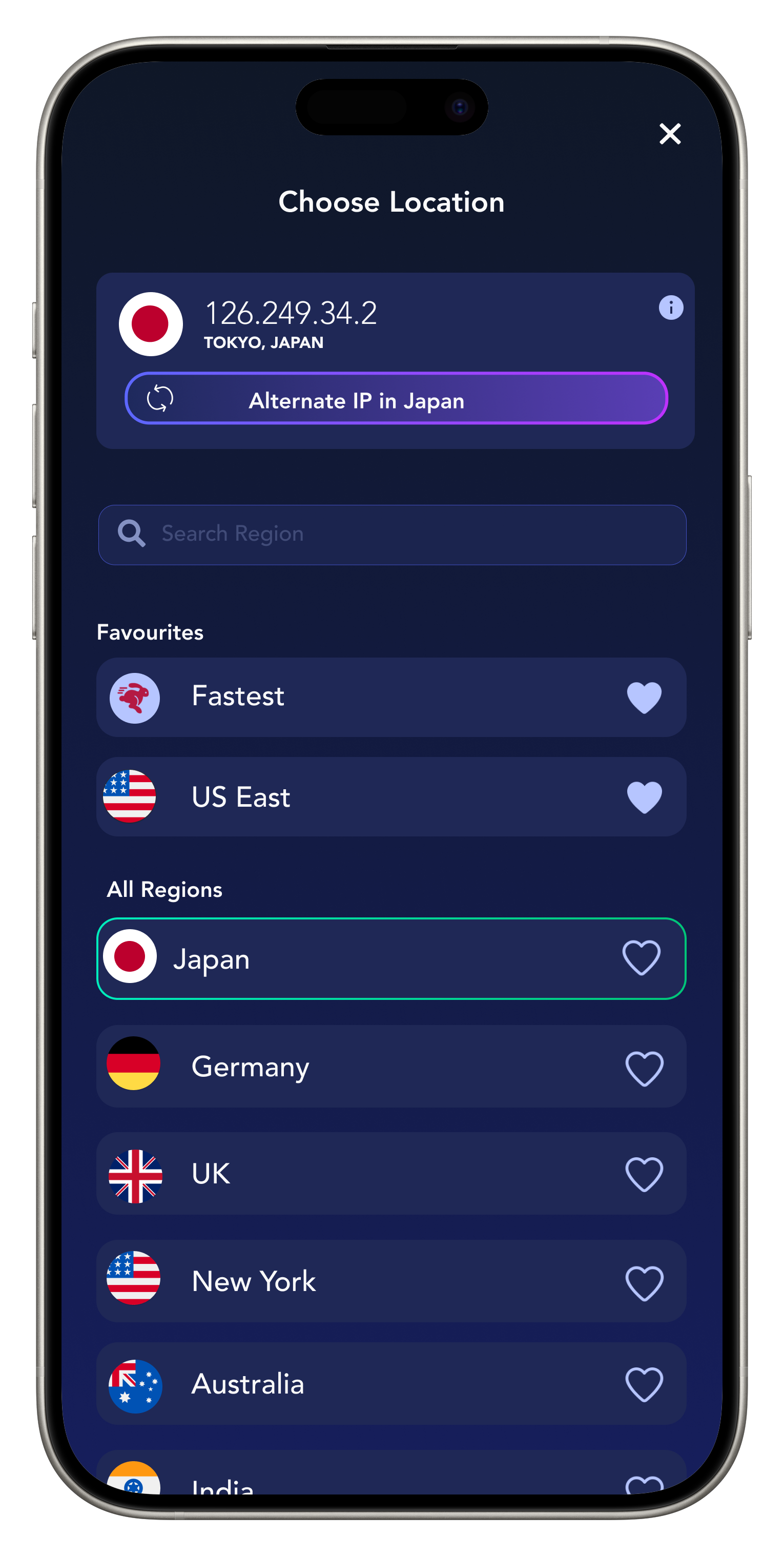
Real FREE VPN US interface.
Available entries can change.
Choose Los Angeles.
Test the route.
- 01
Get FREE VPN US on iPhone
Install the app, open it and approve the standard Apple VPN configuration when prompted.
- 02
Select Los Angeles in Regions
Open Regions, search for Los Angeles, select the location and return to the home screen.
- 03
Connect and enjoy the route
Tap connect, wait for the connected status, then browse, call, stream or use your everyday apps with the Los Angeles route active.
04
Why FREE VPN US
More privacy.
A United States connection.
What FREE VPN US brings
- A United States-focused public IP while the VPN route is active.
- Encrypted traffic between your iPhone and the VPN endpoint.
- Fast switching between Los Angeles and other available North America choices.
You stay in control
- Your iPhone’s GPS and app location permissions.
- Your residence, account country and payment details.
- The physical endpoint or city reported by every IP database.
Everyday ways to use it
Los Angeles, in real-world routines.
These are representative use cases written by our editorial team, not attributed customer reviews.
See ratings and reviews on the App Store →“When I want a United States-focused connection, Los Angeles is easy to find and quick to select on my iPhone.”
United States connection
Illustrative user scenario“I connect before using hotel or airport Wi-Fi, then continue with the apps and accounts I already use.”
Useful while travelling
Illustrative user scenario“Switching between Los Angeles and Southern California makes it simple to find the connection that feels best for the task.”
Easy route comparison
Illustrative user scenario05
Quick help when you need it
Keep the good route.
Fix the small friction.
Connect to Los Angeles, try the task you came for and keep the route if it feels right. These quick checks cover the most common reasons to make an adjustment.
Finding Los Angeles quickly
Open Regions and use search. If Los Angeles is not currently listed, choose another option in North America and check again after updating the app.
The route feels slower than expected
A Los Angeles label does not guarantee access to a US streaming catalog or change a service’s subscription rules. Pause background downloads, then compare Los Angeles with Southern California.
A website shows a nearby place
Reconnect and check again. IP-location databases update at different times, so nearby city labels can occasionally differ while the VPN route is active.
Want a hand? Share the app version, selected label and exact error in our anonymous contact form.
Contact support →06
Quick answers before you connect
Los Angeles.
The details that matter.
Everything you need to choose the preset or region with confidence.
How do I connect through Los Angeles?
Open Regions in FREE VPN US, search for Los Angeles, choose the location, return to the home screen and tap connect. Wait for the connected status before opening your next app.
Why choose the Los Angeles VPN region?
It gives you a United States-focused VPN route, changes the public IP location seen by websites using the connection and adds encryption between your iPhone and the VPN endpoint.
Is Los Angeles useful on hotel or airport Wi-Fi?
Yes. Complete the network sign-in page first, then connect FREE VPN US before browsing or opening your usual apps on the shared network.
Should I compare Los Angeles with Southern California?
Yes. If both are available, try the same task on Los Angeles and Southern California, then keep the route that feels more responsive for your session.
Illinois
United States · State
North AmericaChicago
United States · City
North AmericaDetroit
United States · City
North AmericaA question, request or connection issue?
Use the Help Guide or send an anonymous support message.
FREE VPN US is independent of the services named. Brand marks identify a guide and do not imply endorsement, guaranteed compatibility or current availability.