
You have Private Relay on. Why is there still a VPN button?
You open your iPhone settings, see a privacy feature is enabled and reasonably think the connection is sorted. Later, you want a particular VPN region, switch to another app, or meet a website that behaves differently. Now two sets of controls seem to be answering the same question.
The useful choice starts with your task: browsing in Safari, choosing a connection region, or testing an app’s network route. You do not need to buy or enable everything just because it has “private” in the name.
What Private Relay is built to cover
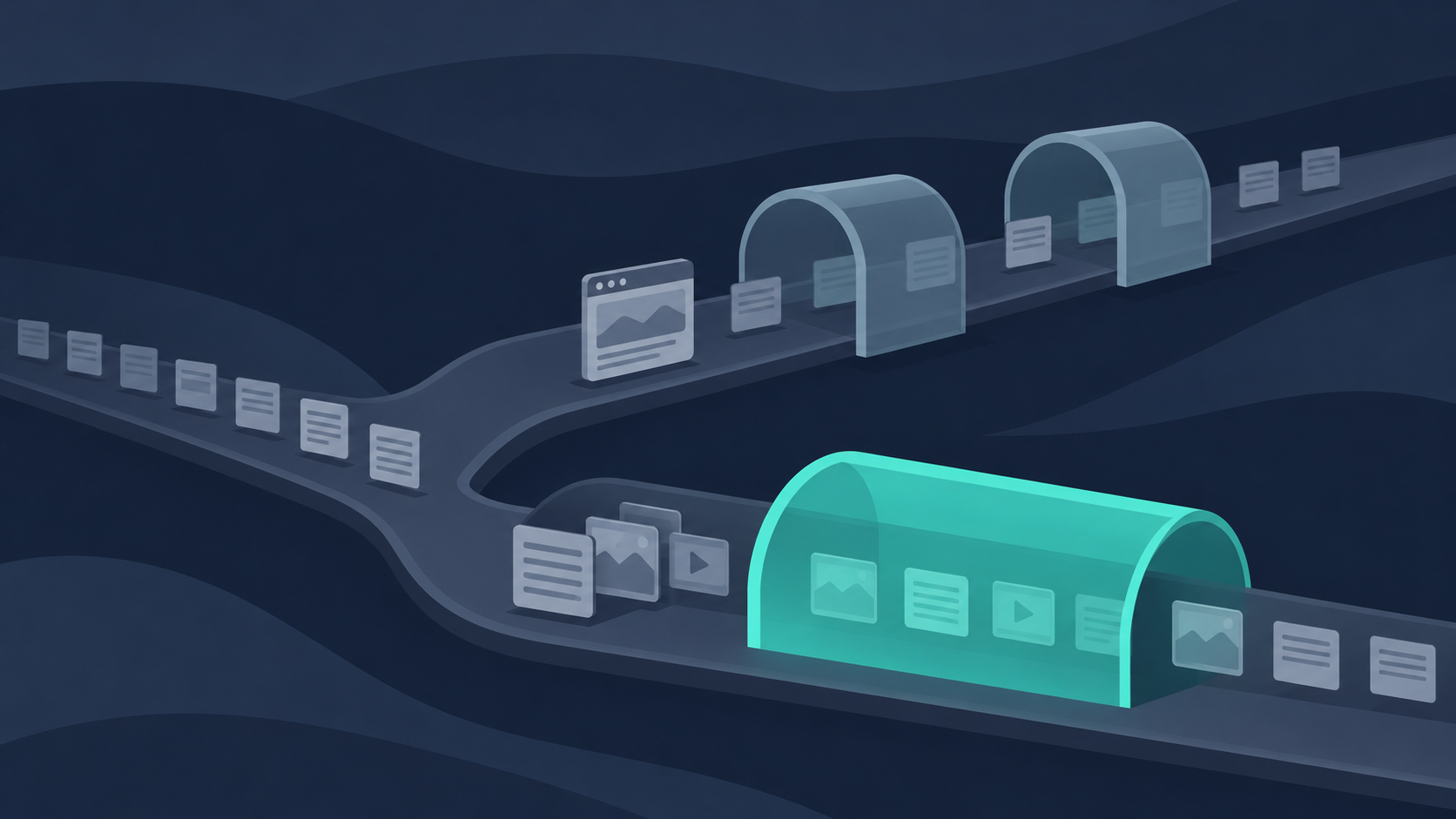
Apple’s technical overview describes Private Relay as an iCloud+ service covering Safari web browsing, DNS lookups and insecure HTTP app traffic. Requests use two separately operated relays. That is a specific design, not an “every app is behind a VPN” indicator.
Its assigned IP retains a broad geographic relationship to you. If your task is choosing an available VPN region, look at the controls offered by a VPN service rather than treating Private Relay as a country selector.
What a VPN configuration changes
Apple explains VPNs as services that can encrypt and route certain device traffic through a provider. The exact configuration matters, and essential system services may still communicate outside that route.
For Free VPN US, Regions and Services provide connection choices in the app. They help you select an available route or preset; neither is proof that a particular website accepts that route. A country selection does not rewrite your account details or grant access to paid content.
| Your goal | Start here | Check before assuming |
|---|---|---|
| Understand Safari’s privacy route | Private Relay settings and Apple’s scope | Whether the feature is available on your current network |
| Select a VPN region or service | The VPN app’s available connection choices | Your access tier and the actual connection status |
| Fix one website that will not load | That site’s message and the relevant setting | Which privacy control affects that request |
| Know what a signed-in site knows about you | Account, cookie and app privacy controls | A different IP does not erase a login |
A practical iPhone check, before changing anything
Write down the one thing you want to do. “Open this site in Safari” is testable. “Make my whole phone invisible” is not. Keep the same network and the same app while testing, so you can tell which change mattered.
To inspect Private Relay, use your iPhone’s iCloud settings and the feature’s current status. If the setting is unavailable, check Apple’s availability and network guidance. Do not delete a work or school configuration to make a personal app work; ask the organisation that manages it.
For a VPN US connection, use this short sequence:
- Install and open. Get Free VPN US on the App Store, then open the app.
- Choose a Region or Service. Both choices are available in the app; options depend on your access tier.
- Connect and confirm. Check that the app shows an active connection. If you change your choice, check again.
- Test your task. Open the intended app or website and see whether it works. A connected label alone does not establish compatibility.
Use the searchable Free VPN US User Guide for the screen or control you need. The Browser Modes guide is a separate explanation of the app’s own browsing choices.
If a website stops working, change one thing
Apple’s site and network guidance explains that some services need IP-based checks. In Safari on iPhone, the page menu may offer Show IP Address for a particular site. Read what that reveals before choosing it; avoid disabling a feature everywhere just to test one page.
If a service asks for a direct connection, check the VPN app as well. Free VPN US can disconnect from its main connection screen; Premium also includes Pause VPN. Confirm the state you intended and restore your preferred connection after the task. A direct connection is not carried through that VPN tunnel.
If you are unsure which control caused the problem, record the error, your app or browser and whether it occurs on another trusted network. That is more useful to support than a list of settings changed together.
Choose a tool for a purpose, then keep the check simple
Private Relay and a VPN can belong to the same iPhone owner’s toolkit, but their names do not tell you which route a request actually used. Start with the documented scope and your task, choose the control that fits, and verify it in the app you use.
We have not tested every Free VPN US and Private Relay combination. There is no claim of automatic double protection, universal app coverage or guaranteed service access here.
Keep the instructions current
Sources checked November 4, 2026. Setting names and available app options can change. Recheck this guide by December 4, 2026, or when Apple or Free VPN US changes the relevant controls.
Private Relay and VPN FAQs
Is iCloud Private Relay the same as a VPN?
No. Apple describes Private Relay as protection for Safari browsing, DNS lookups and insecure HTTP app traffic. A VPN uses its own configuration to route selected network traffic through a provider. Check the scope you actually need.
Does Private Relay protect every app on my iPhone?
Do not assume that. Its documented scope is not a promise to route every app through the service. Check the privacy and connection settings of the app you intend to use.
Can Private Relay give me a US VPN region?
Private Relay is designed around obscuring your precise location while retaining regional relevance. It is not the Free VPN US Regions control. A VPN region choice also does not change GPS, account country or service rights.
Should I turn on both tools for double protection?
Two enabled controls do not prove that traffic passes through both. Check the active configuration and test the actual app or site. We have not verified every Free VPN US and Private Relay combination.
Why does Safari ask to show my IP address?
Some sites need an ordinary IP-based connection to function. Apple provides a site-specific option to reveal your IP. Read the notice before using it; the privacy change applies to that task.
Does a VPN make every connection anonymous?
No. Signed-in accounts, cookies and other signals can identify you. Apple also notes that essential system traffic can operate outside a VPN. Choose a provider you trust and read its privacy practices.
How do I try Free VPN US on my iPhone?
Install and open the app, choose an available Region or Service, connect and confirm its status, then test the intended app or site. Available options depend on your access tier. Use the searchable User Guide for deeper help.
Do I need to change settings if everything already works?
Start with your purpose. If your current setup meets it, there is no need to change several privacy controls at once. If something fails, investigate one setting and one test at a time.
Choose your next useful check

Try Free VPN US with a clear first step
Choose an available Region or Service, connect and check your intended app or site. Start with the controls you need and use the guide when you want more detail.
Get Free VPN US on the App Store