
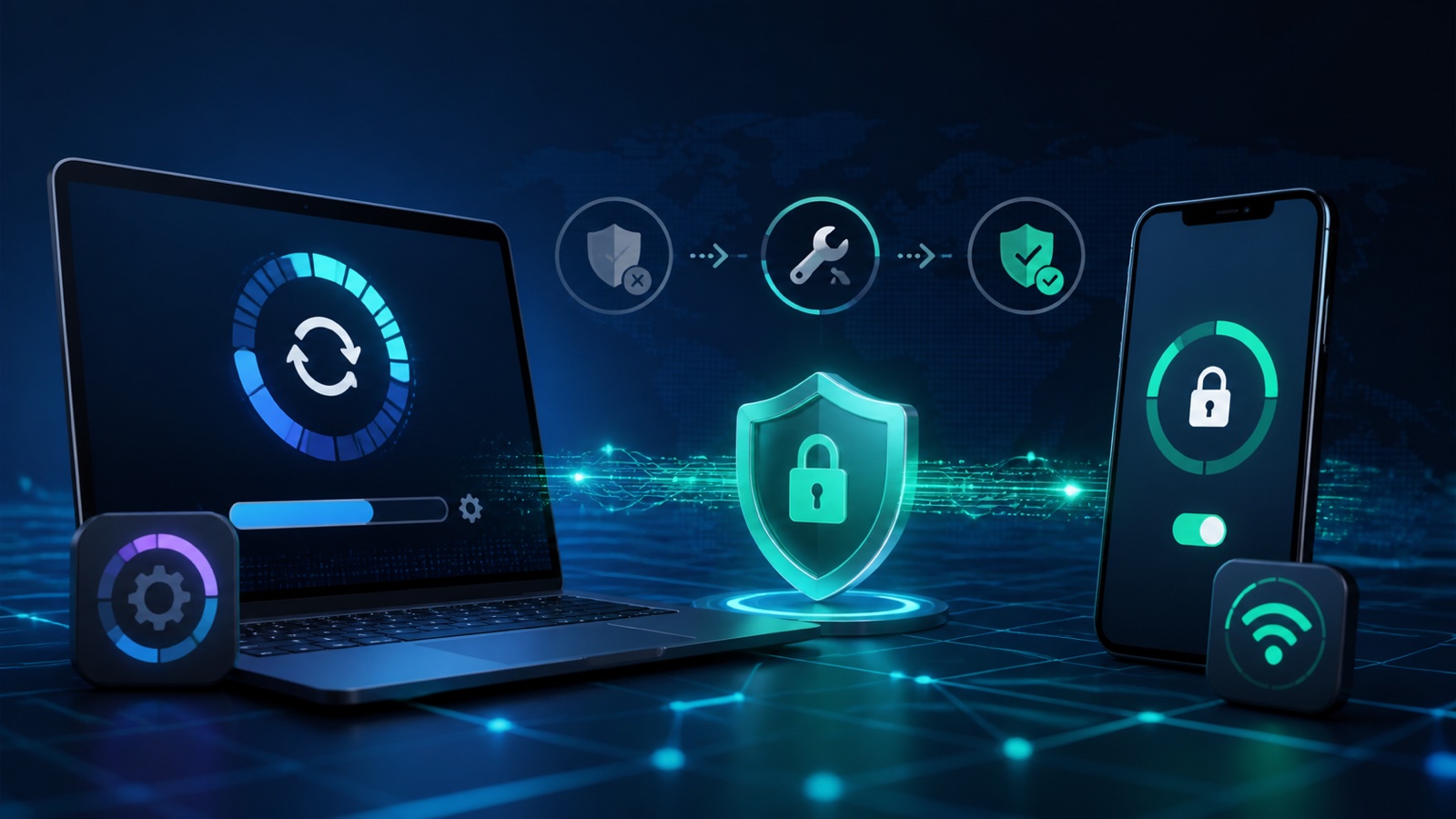
Why updates can interrupt a VPN
VPN apps rely on operating-system networking frameworks and a saved configuration. A major or security update can restart those services, change extension compatibility, or require the app to request authorization again. The internet may work normally while the encrypted tunnel fails to start.
The timing does not always prove that the update itself is defective. Router problems, a captive portal, server maintenance, or another security app may appear at the same time. A short diagnostic sequence helps isolate the cause.
- Confirm normal internet access with the VPN disconnected.
- Install the latest VPN app update.
- Restart iPhone or Mac once.
- Test another region and another physical network.
Avoid the biggest reset first
Resetting all network settings can erase saved Wi-Fi networks and preferences without fixing an incompatible app. Start with the narrowest reversible change.
Fix the VPN after an iPhone update
Open the VPN app and reconnect so iOS can present any required configuration prompt. If the app connects but no pages load, switch regions and test on cellular as well as Wi-Fi. A network that requires a captive portal must be authorized before the VPN starts.
If the configuration appears damaged, remove only the profile created by the app and let the trusted app add it again. Avoid broad Reset Network Settings unless focused fixes fail, because that reset removes saved Wi-Fi and other network preferences.
- Open the app rather than relying only on the Settings toggle.
- Approve a legitimate VPN configuration prompt from the trusted app.
- Check whether Low Power Mode changes background reconnection.
- Reinstall the app only after confirming account or subscription access.
Fix the VPN after a macOS update
On Mac, check whether the app needs permission to enable its network extension. Update the app from its trusted distribution channel and restart. Older VPN clients, firewalls, DNS tools, or content filters may conflict after the operating system changes.
Review VPN and Filters in network settings and remove stale entries only when you know which app created them. On a managed Mac, contact the administrator before changing profiles, system extensions, or security controls.
- Launch the app once after the update.
- Allow only the expected network extension.
- Quit competing VPN or filtering tools.
- Use another user-approved network to isolate router restrictions.
Another network is a powerful test
If the VPN works on cellular or a different Wi-Fi network, the updated device is probably capable of connecting and the original network deserves closer inspection.
When to reset settings or contact support
A broad network reset is a last resort, not the first step. Use it only after documenting the failure, updating software, restarting, testing another network, and recreating the individual VPN profile. Save any network details you will need afterward.
Contact support with the device model, operating-system version, app version, affected network type, region tried, and exact error message. Do not send passwords, verification codes, private browsing history, or full diagnostic archives unless the trusted support team explains what is required.
Frequently asked questions
Why did my VPN stop working immediately after an update?
The update may have restarted network services, changed extension compatibility, or required the app to recreate authorization. Update the app and restart before deeper changes.
Should I reinstall the VPN app?
Reinstalling can help after simpler fixes fail, but first confirm you can restore any account or subscription access and remove only the profile created by that app.
Will Reset Network Settings fix the VPN?
It can resolve corrupted settings, but it also removes saved network preferences. Use it only after focused troubleshooting and preparation.
What details should I send to VPN support?
Send device and software versions, network type, region tried, exact error text, and when the problem began. Never send passwords or verification codes.
Questions worth checking next
Use these short answers to confirm the safest next step for your setup.
Related privacy guides
Use Free VPN US on iPhone and Mac
Add an encrypted network layer when you browse on public or unfamiliar networks. Keep device settings, app permissions, and account security working alongside the VPN.
- Simple connection controls
- Multiple VPN regions
- Built for Apple devices